Invoice States
Overview
Section titled “Overview”Every invoice in Invoice Manager carries a workflow state. States differ slightly for purchase (AP) and sales (AR) documents. You see states as badges on lists, Kanban columns, and the detail header.
Purchase Invoice (In Docs)
Section titled “Purchase Invoice (In Docs)”| State | Meaning |
|---|---|
| Draft | Created or not yet fully in review |
| Pending Review | Needs clerk review after extraction |
| Pending Approval | Waiting on an approver |
| Approved | Approval done — system posts to ERP (or confirms via API) without a separate clerk step |
| Rejected | Rejected in review or approval |
| Posting to ERP | Post in progress |
| Posted to ERP | Successfully written to the ERP (or confirmed by external API) |
| Post-ERP Error | ERP post failed — fix data/mappings and retry |
Typical path: intake → Pending Review → Pending Approval (if required) → Approved → status moves to Posted to ERP (or Post-ERP Error) once posting completes.
After Approve, most sites do not need a separate clerk “mark as posted” step: with Auto-Post or API-Managed ERP posting mode, the status updates when the system posts or the API confirms. If the legal entity uses Manual ERP posting mode, an authorized user still uses Post to ERP on the invoice after approval — see Legal Entity Setup (Approval Workflow / ERP Posting Mode).
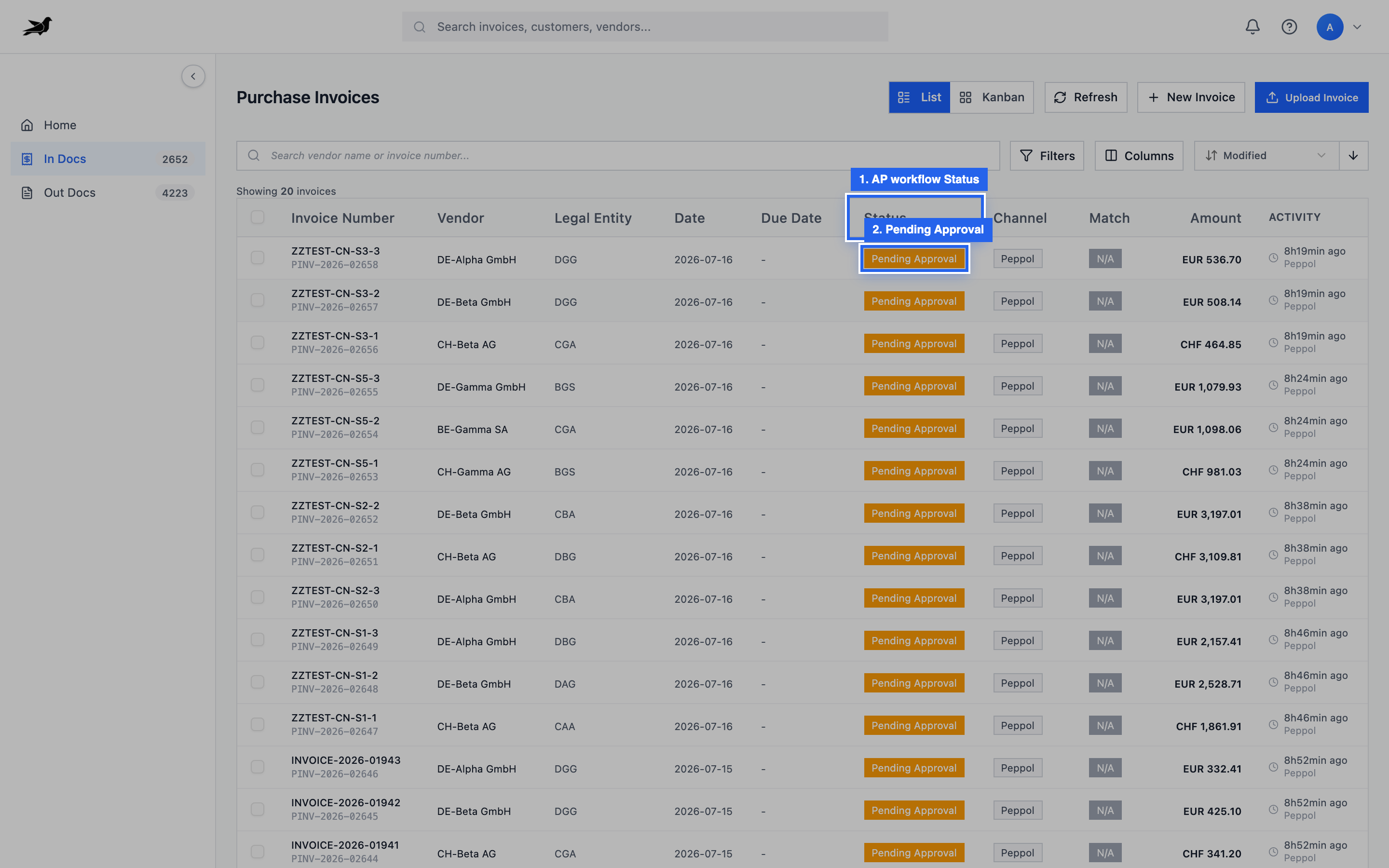
Status column on purchase invoices — filter or scan for Pending Approval, Posted, Draft, and other AP states.
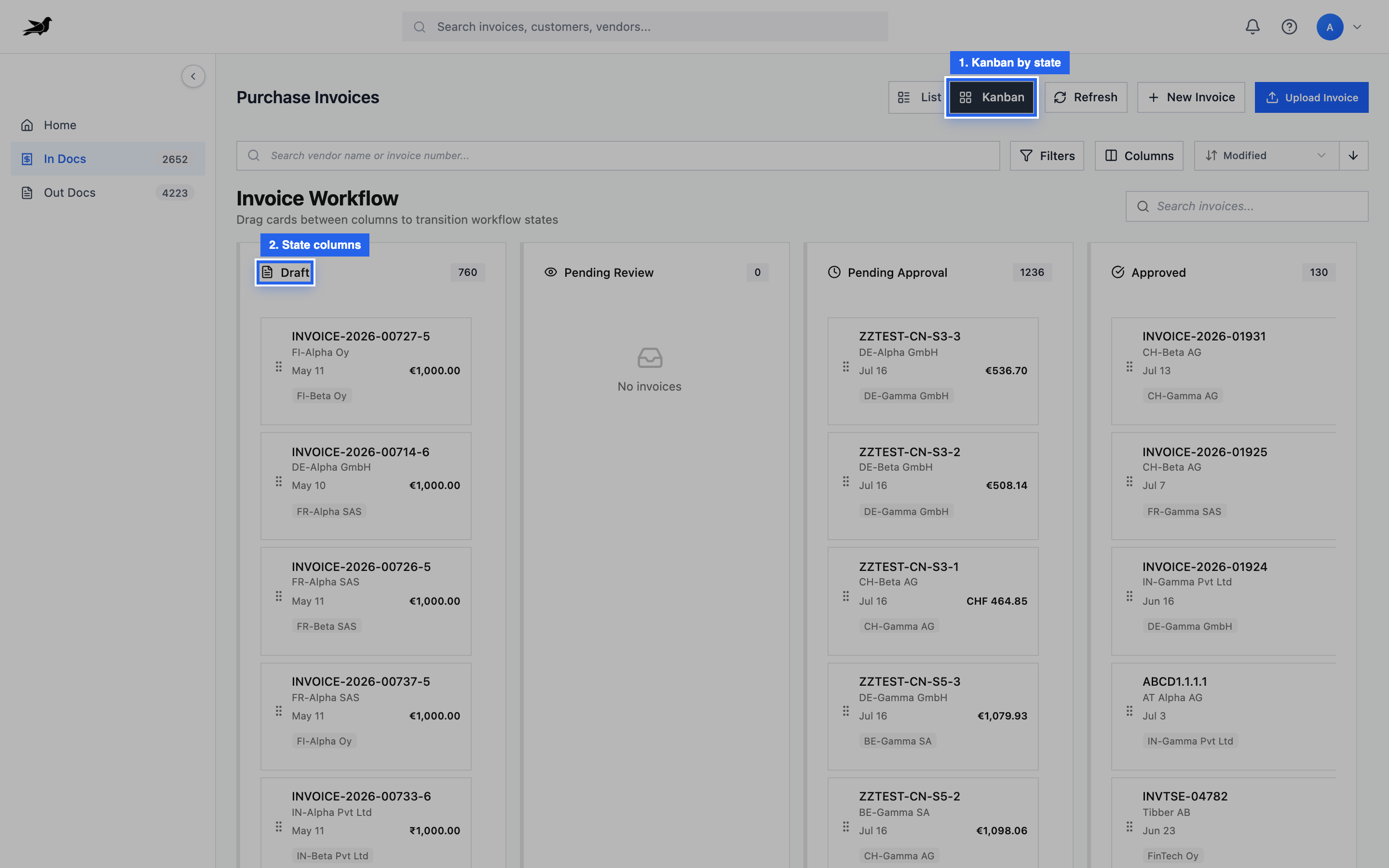
Kanban groups purchase invoices by workflow column.
Sales Invoice (Out Docs)
Section titled “Sales Invoice (Out Docs)”| State | Meaning |
|---|---|
| Draft | Manual create or still editable |
| Pending Review | Needs human check after extraction or incomplete data |
| Pending Approval | Waiting on an approver |
| Ready to Send | Cleared for PEPPOL (or email) transmission |
| Sent to Customer | Successfully sent / delivered on the network |
| Send Failed | Send or validation failed — fix and retry |
| Rejected | Rejected in the approval flow |
Typical path: create → Draft / Pending Review → Pending Approval (if required) → Ready to Send → Sent to Customer after send. When approval is required, once the sales invoice is approved, workflow advances toward send; after a successful send (or API delivery), the status updates automatically — you do not keep a separate “delivered” step beyond Send to Customer / MLR.
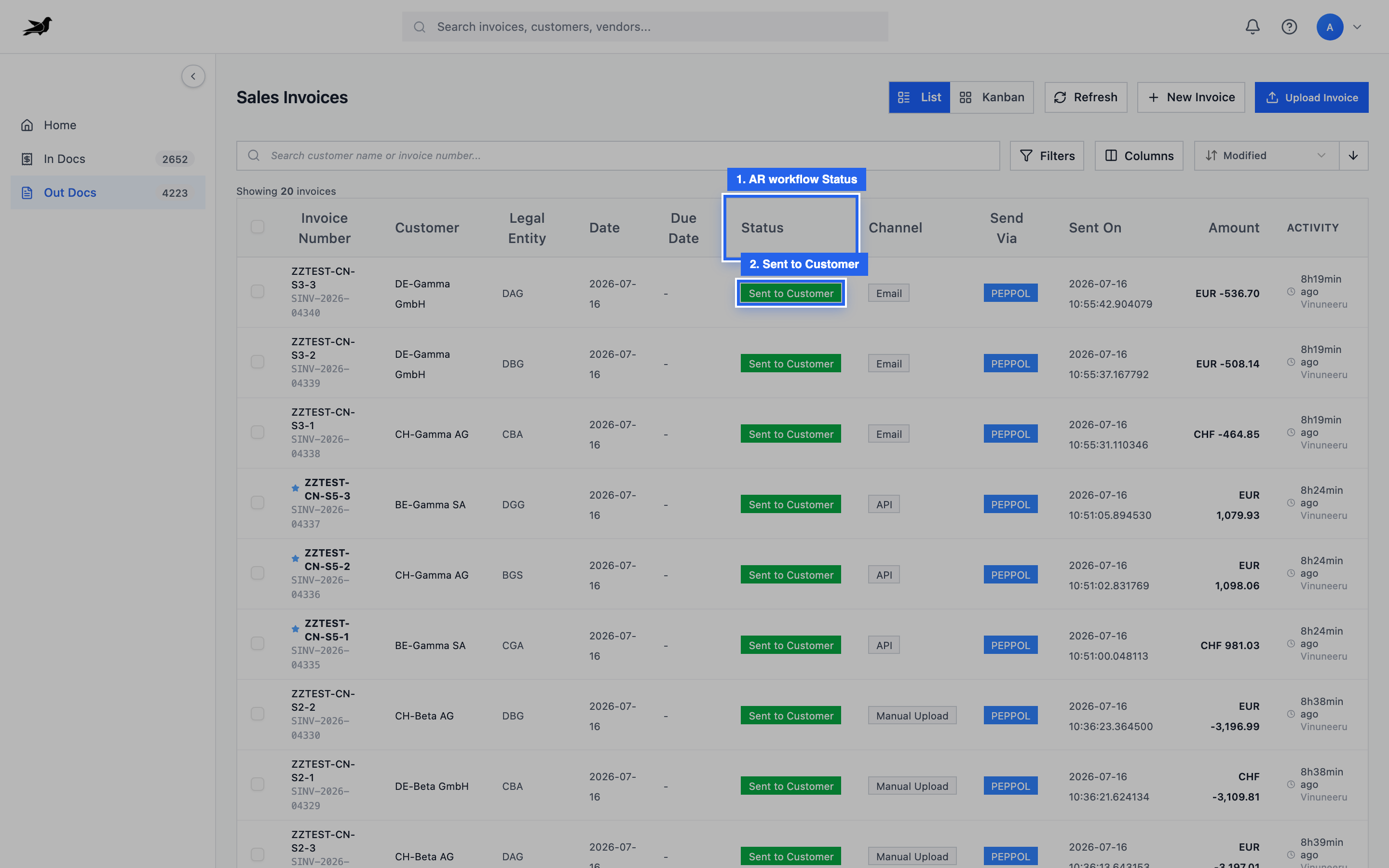
Sales list Status — Ready to Send, Sent to Customer, Send Failed, and related AR states.
State on the detail screen
Section titled “State on the detail screen”The detail header shows the current state and only the actions valid for that state.
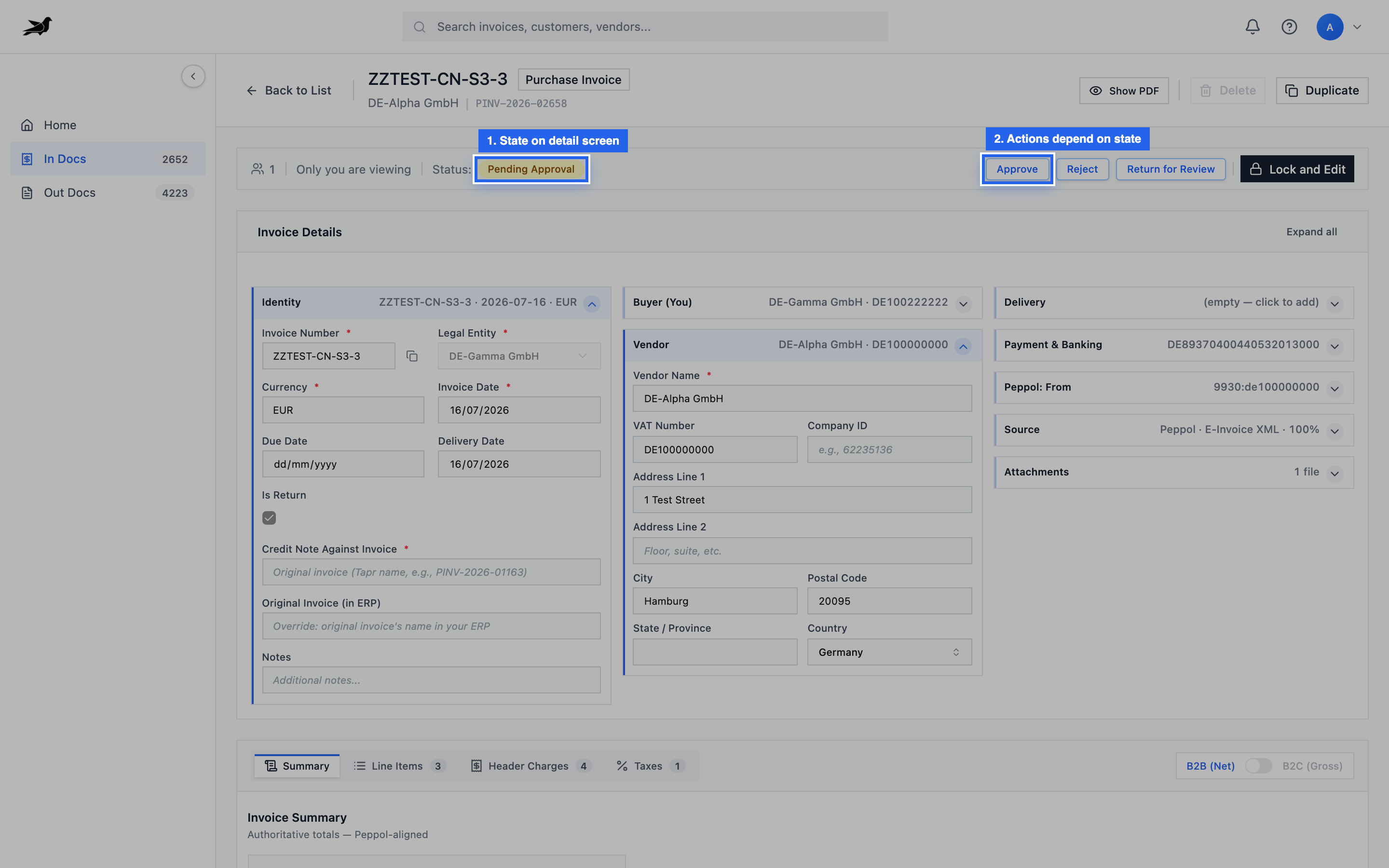
AP example: Pending Approval unlocks Approve / Reject-style actions for permitted users.
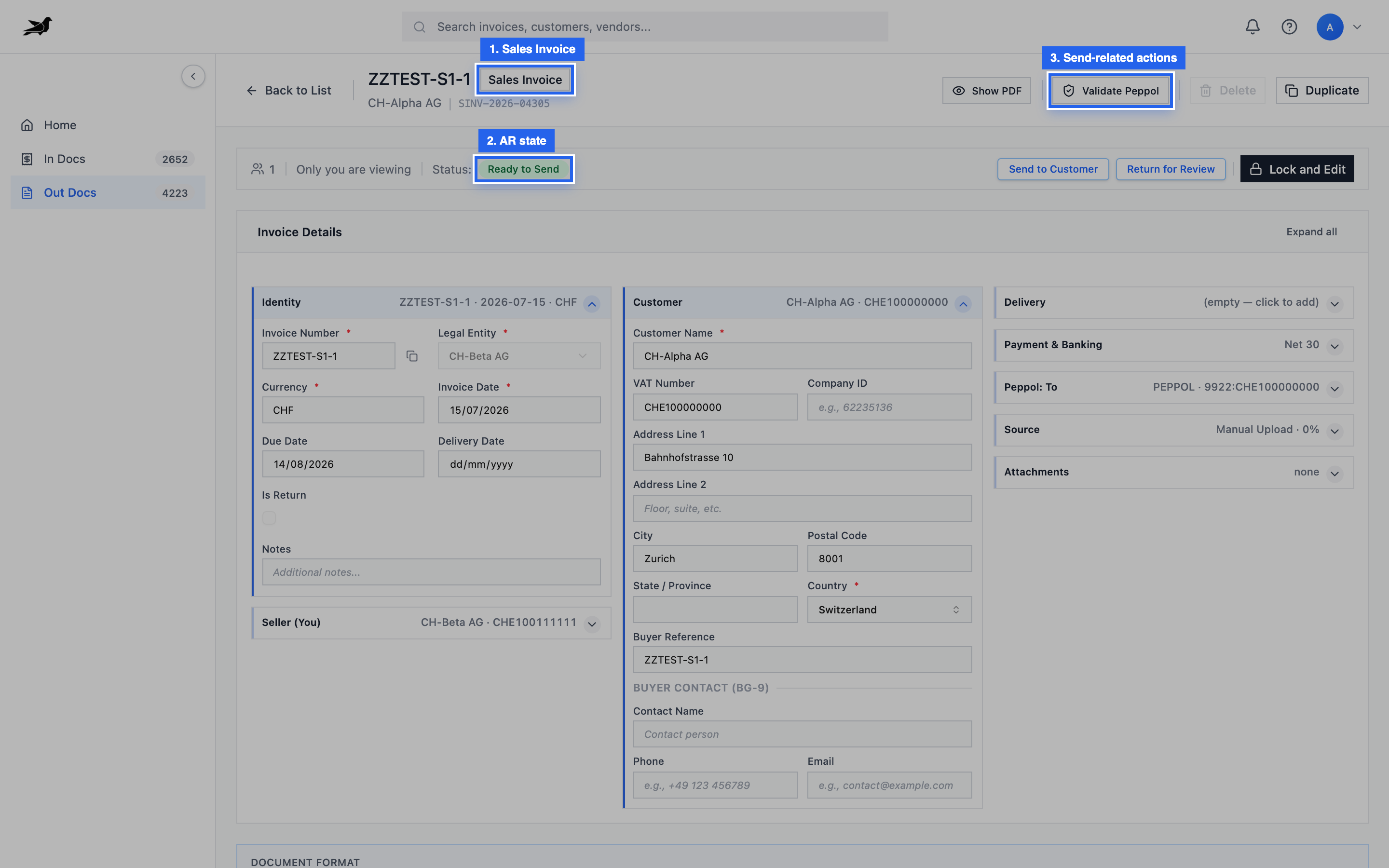
AR example: Ready to Send or Sent to Customer with send / validate actions as appropriate.
Related status fields
Section titled “Related status fields”| Field | Where | Meaning |
|---|---|---|
| MLR status | Sales | Network-level acknowledgement after send |
| BLR / Invoice Response | Purchase | Response you sent to the vendor on a received invoice |
| Source channel | Both | How the document entered Tapr |
After approval (AP and AR)
Section titled “After approval (AP and AR)”Once a purchase or sales invoice is approved:
| Document | What happens next |
|---|---|
| Purchase Invoice (PI) | Status moves when the invoice is posted to the ERP (or delivery is confirmed via API) — typically to Posted to ERP, or Post-ERP Error if posting fails. With Manual posting mode, someone must still click Post to ERP after approval. |
| Sales Invoice (SI) | Status moves when the document is sent (PEPPOL) or delivered via API — e.g. toward Ready to Send / Sent to Customer, with MLR updating separately when the network answers. |
Operators track the Status badge. After approve, Auto-Post / API-Managed configs advance without a separate “mark as posted” action; Manual ERP mode still requires Post to ERP.
- Filters and the home dashboard use these state names — filter by workflow state when looking for work queues.
- After Send Failed, the invoice usually remains editable so you can fix PEPPOL validation errors and resend.
- After Post-ERP Error, fix the underlying data or ask an admin to check ERP setup, then retry from the allowed workflow state.