Edit Locks & Presence
Overview
Section titled “Overview”Invoice Manager supports collaborative safety so two people do not silently overwrite the same invoice:
- Edit lock — exclusive right to edit a document for a limited time
- Presence — who is currently viewing the invoice
Presence
Section titled “Presence”When you open a purchase or sales invoice, the header shows who is looking at it (for example “Only you are viewing”).
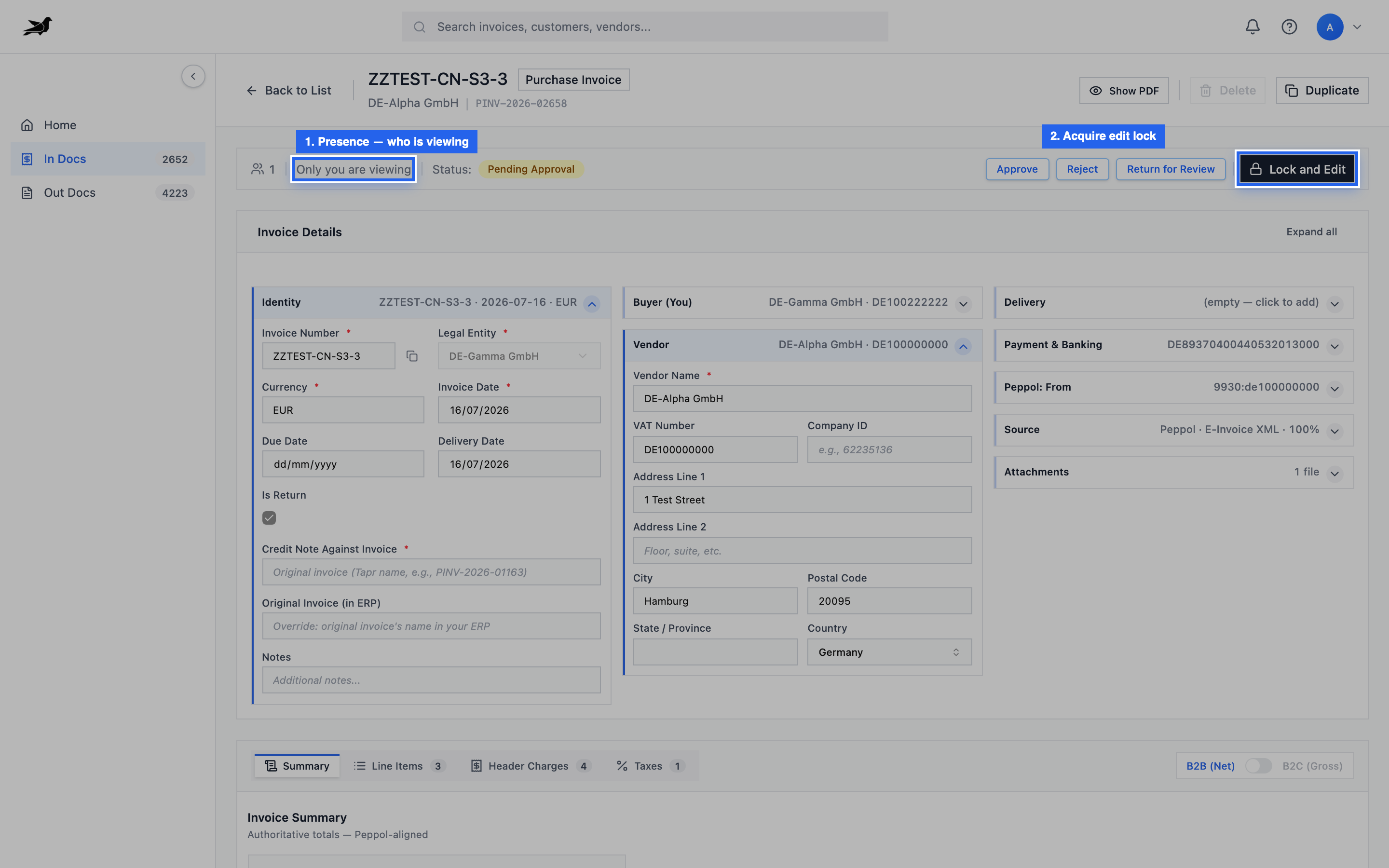
Presence shows viewers; Lock and Edit is how you acquire the exclusive edit lock.
Use presence to coordinate — for example, one person reviews the PDF while another waits to edit lines.
Edit locks
Section titled “Edit locks”How it works
Section titled “How it works”- Click Lock and Edit on a purchase or sales invoice.
- Tapr tries to acquire a lock (who holds it, when it expires).
- Other users see that the invoice is locked and should not expect free concurrent edits.
- Leaving the invoice, unlocking, logging out, or an explicit release frees the lock.
- Locks auto-expire after a configured duration so abandoned sessions do not block forever.
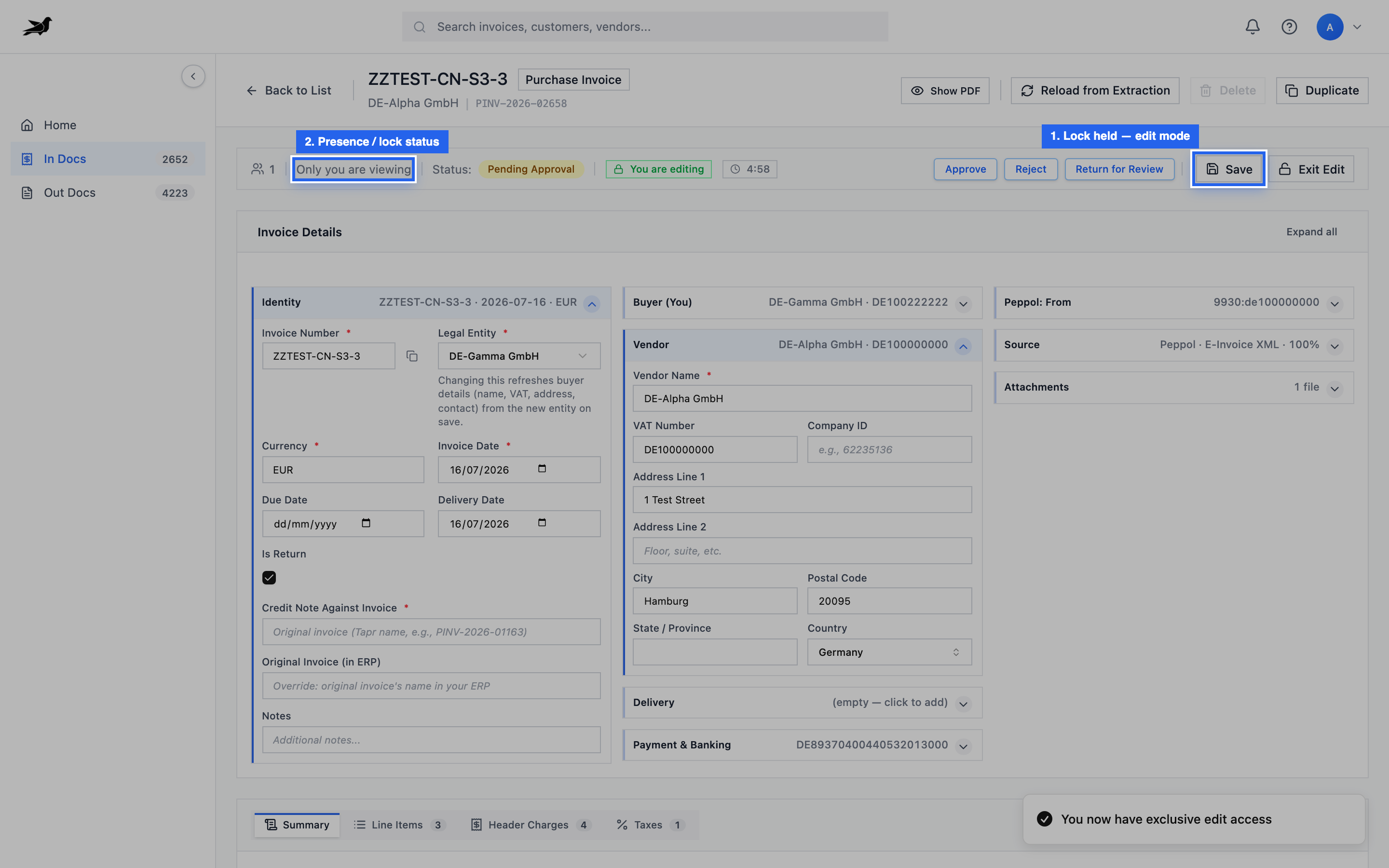
After a successful lock, you are in edit mode — fields can change and workflow actions reflect your permissions.
Force release
Section titled “Force release”Administrators can force-release a stuck lock if a user left the session without releasing it.
Practical tips
Section titled “Practical tips”- Finish edits and save before walking away for a long time.
- If you cannot edit, check who holds the lock (presence / lock status) before forcing release.
- Logout releases remaining locks for the session where supported.