Reviewing & Sending Sales Invoices
Overview
Section titled “Overview”After a sales invoice exists in Out Docs, the daily job is: review → approve (if required) → Send to Customer → watch delivery status. This page covers that path. For how invoices are created, see Creating & Sending Sales Invoices.
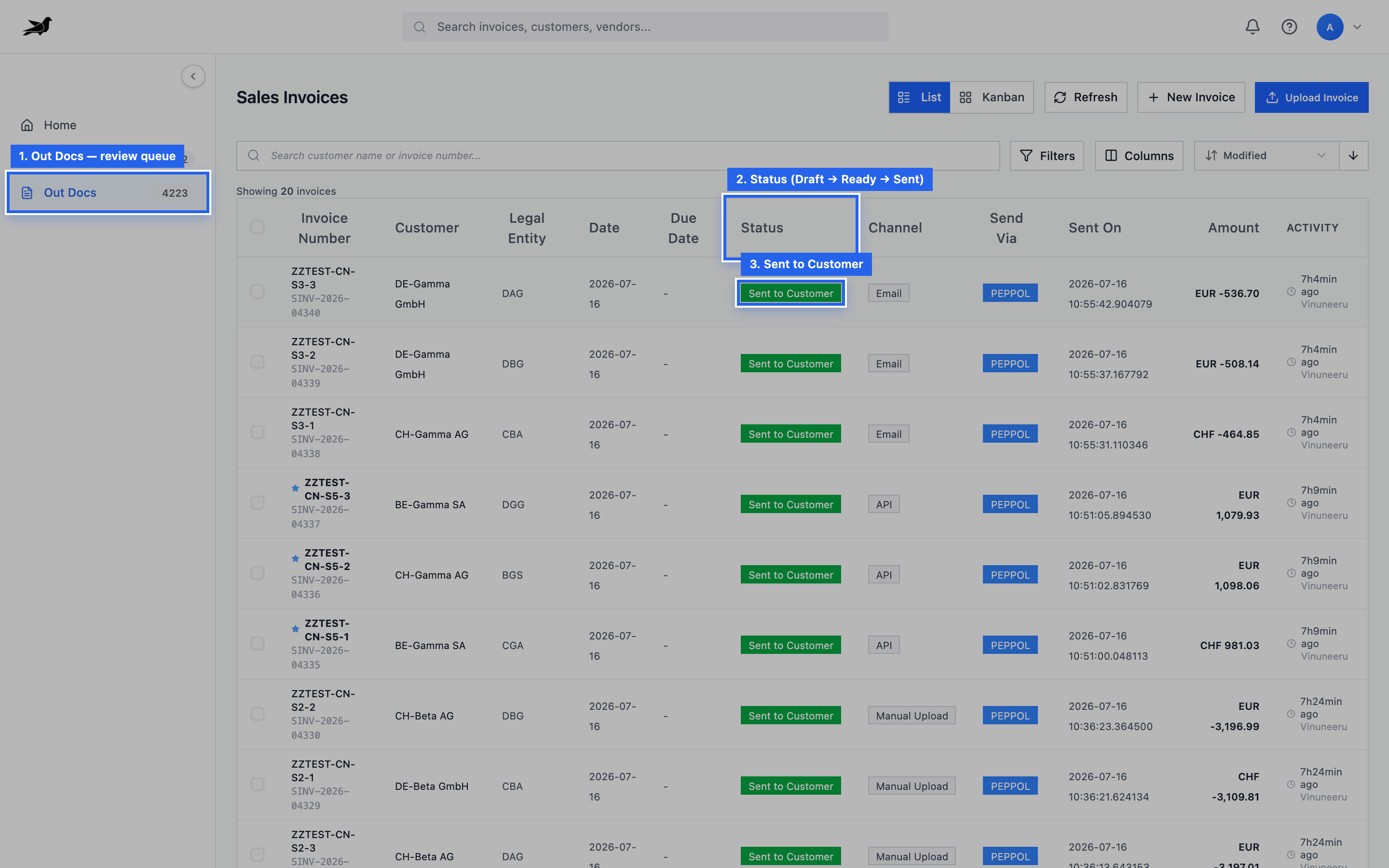
Open Out Docs and use the Status column to find invoices waiting for review, approval, send, or already delivered.
You can also switch to Kanban to work by workflow column:
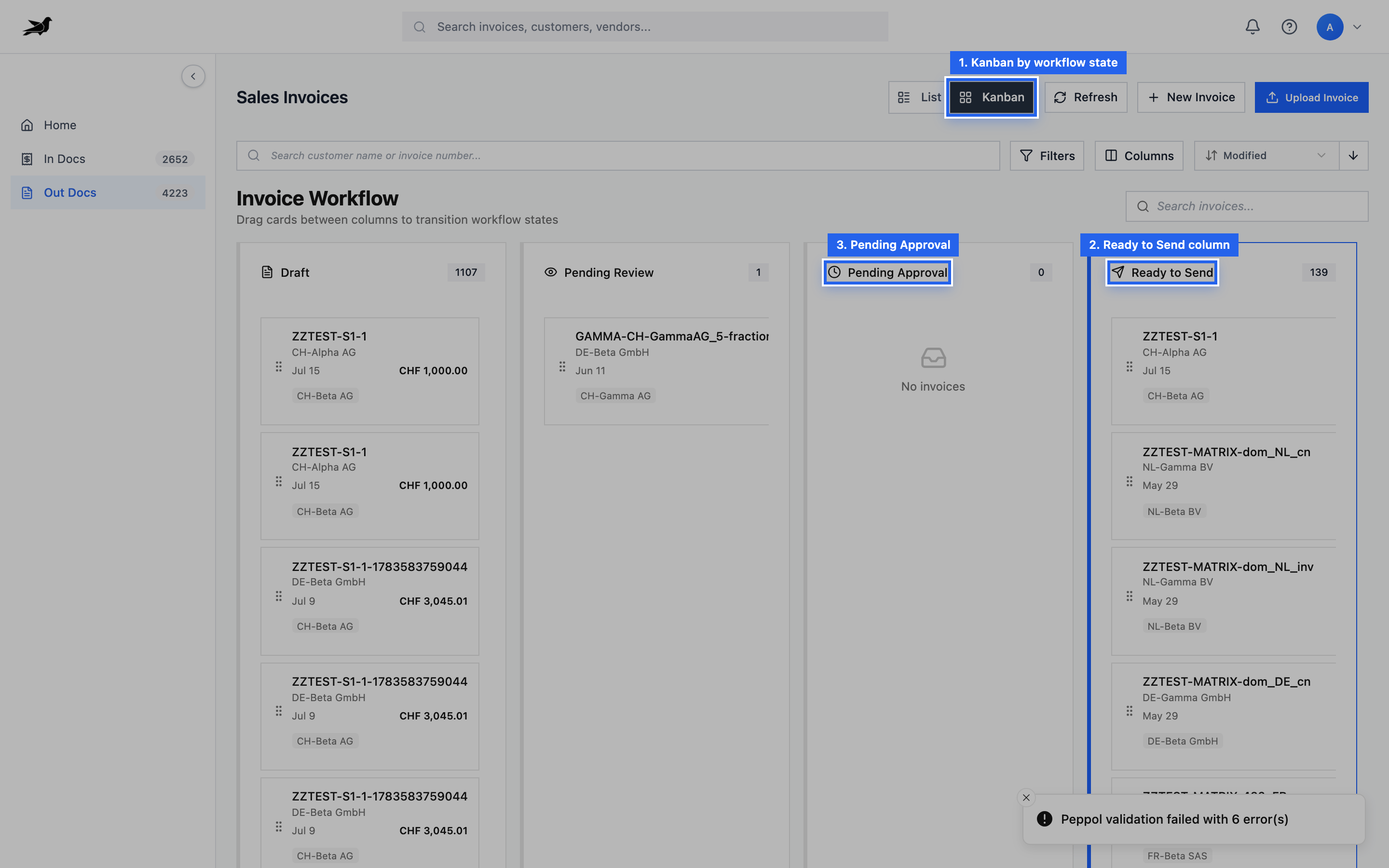
Kanban groups sales invoices by state (for example Pending Review, Ready to Send, Sent to Customer).
Review checklist
Section titled “Review checklist”Open the sales invoice and confirm:
- Legal Entity (seller) is correct
- Peppol Sender ID is the registration this invoice should leave from (the entity’s default unless you pick another)
- Buyer Reference is filled. Invoice Manager requires it when you save edits to a sales invoice. Invoices created by New Invoice, Upload, AR Email, ERP fetch, SFTP or API can arrive without it, so check it before sending
- Customer name and address are complete enough for PEPPOL
- PEPPOL Receiver ID is set; SMP lookup succeeds when possible
- Invoice number, date, currency, and line items are accurate
- Tax codes / rates and charges are mapped (unmapped charges can block send). On an export outside the EU, the banner on Line Items / Header Charges warns when a row still uses a domestic code such as S – Standard rate; the warning does not block send
- Credit notes include preceding invoice references when required
- PDF or original e-invoice attachment is present if the customer expects it
- Document format is the type you intend to send (see Send to Customer)
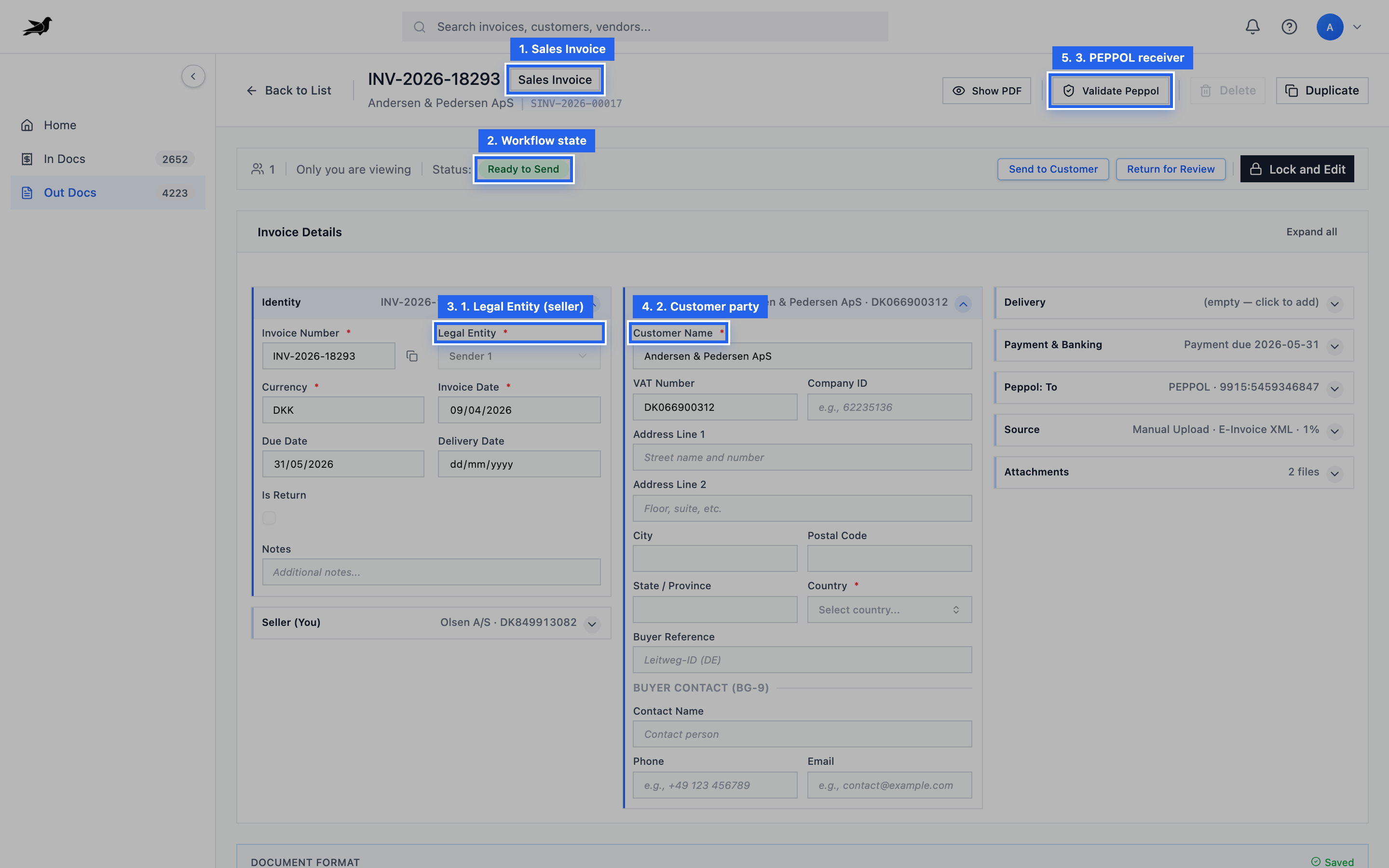
Detail screen: confirm document type, workflow state, Legal Entity, customer, and PEPPOL receiver before advancing.
Check lines, taxes, and charges on the detail tabs:
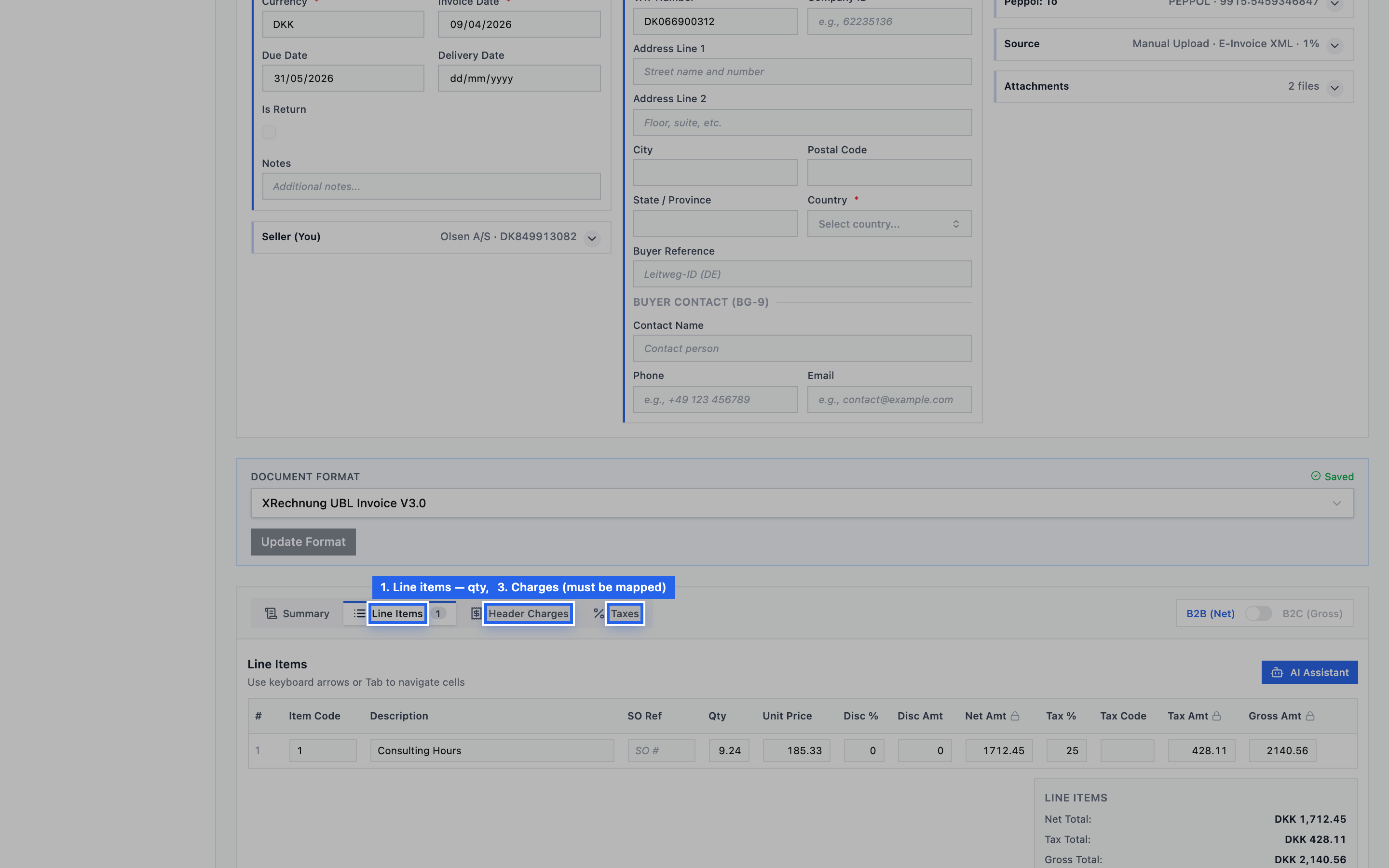
Use Line Items, Header Charges, and Taxes to verify quantities, rates, tax codes, and mapped charges.
Confirm the original file when the customer expects a PDF or e-invoice attachment:
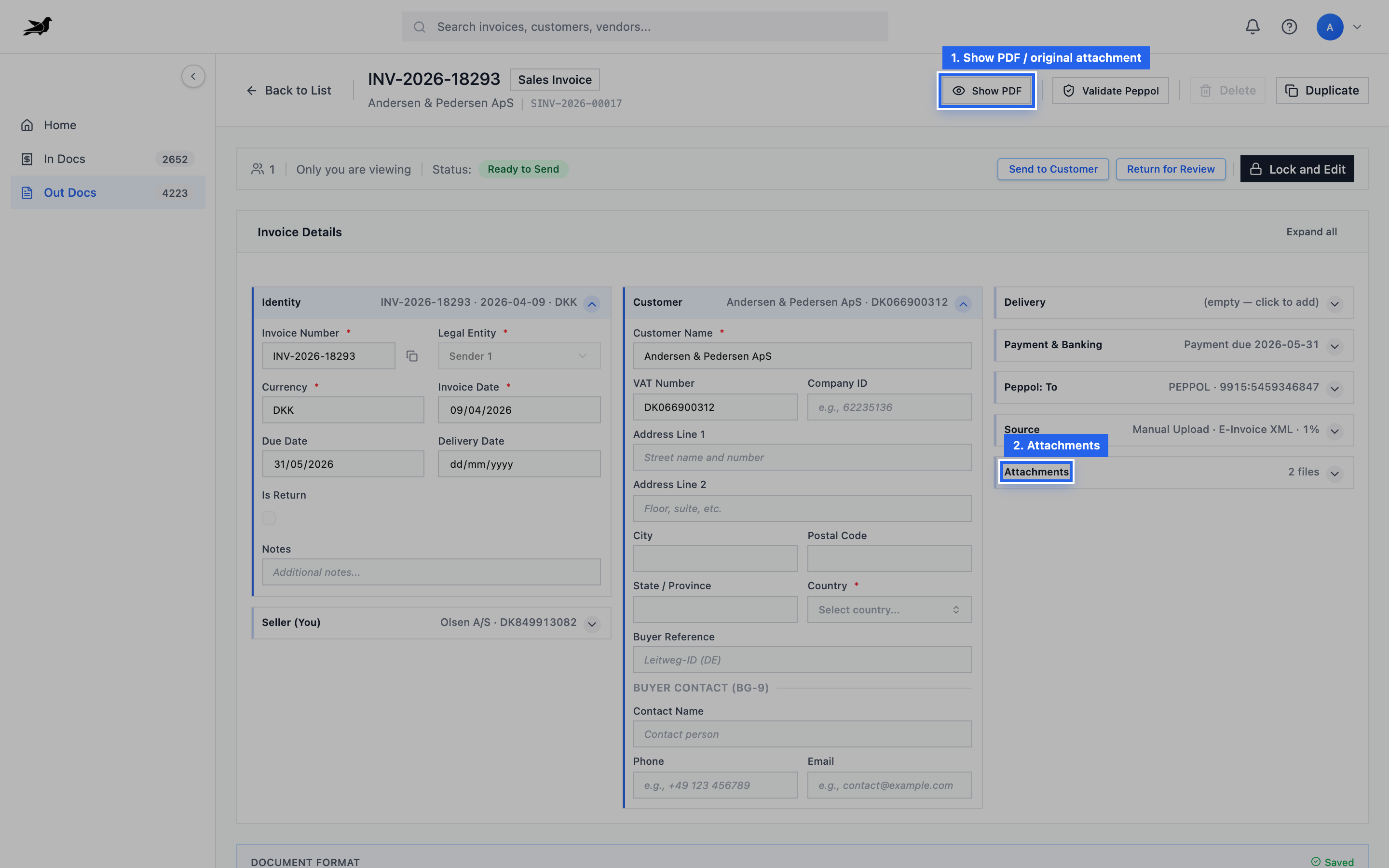
Show PDF opens the attachment; the Attachments section lists files on the invoice.
Approval
Section titled “Approval”If the legal entity requires approval, submit until the state is Pending Approval. An approver advances the document to Ready to Send (or rejects it).
If approval is not required, the invoice can move to Ready to Send after review.
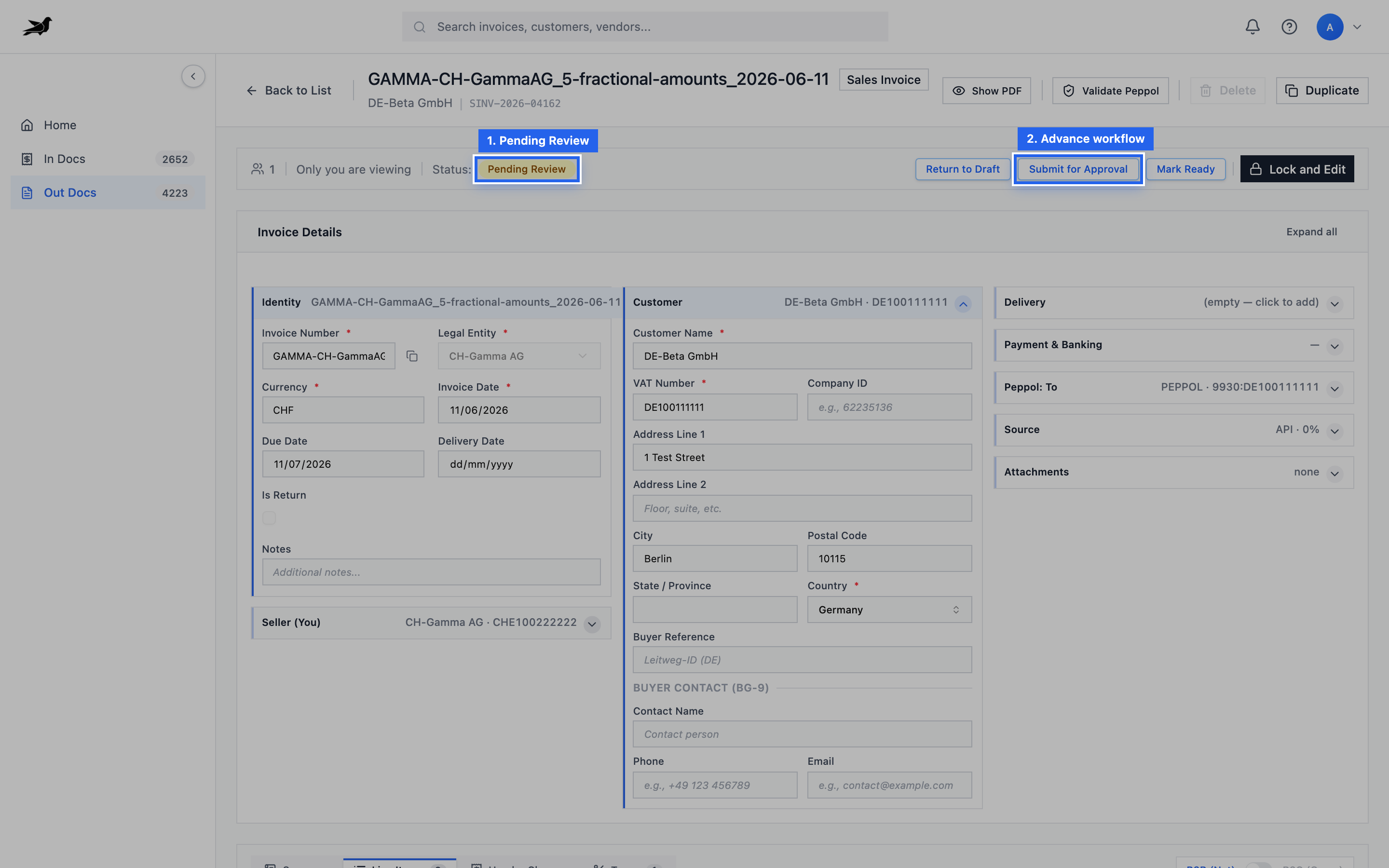
In Pending Review, use Submit for Approval (or Mark Ready when approval is not required). Approvers later use Approve / Reject when status is Pending Approval.
Send to Customer
Section titled “Send to Customer”- Ensure workflow state is Ready to Send.
- Confirm Send Via is PEPPOL (default for network delivery).
- Confirm Document format. Leave it empty to send Peppol BIS Billing 3.0 UBL when the receiver accepts it, including when they also advertise XRechnung or a French profile. Pick a national profile or France Factur-X only when that is the document you mean to send.
- Run Send to Customer.
- On success, state becomes Sent to Customer and a PEPPOL reference may be stored.
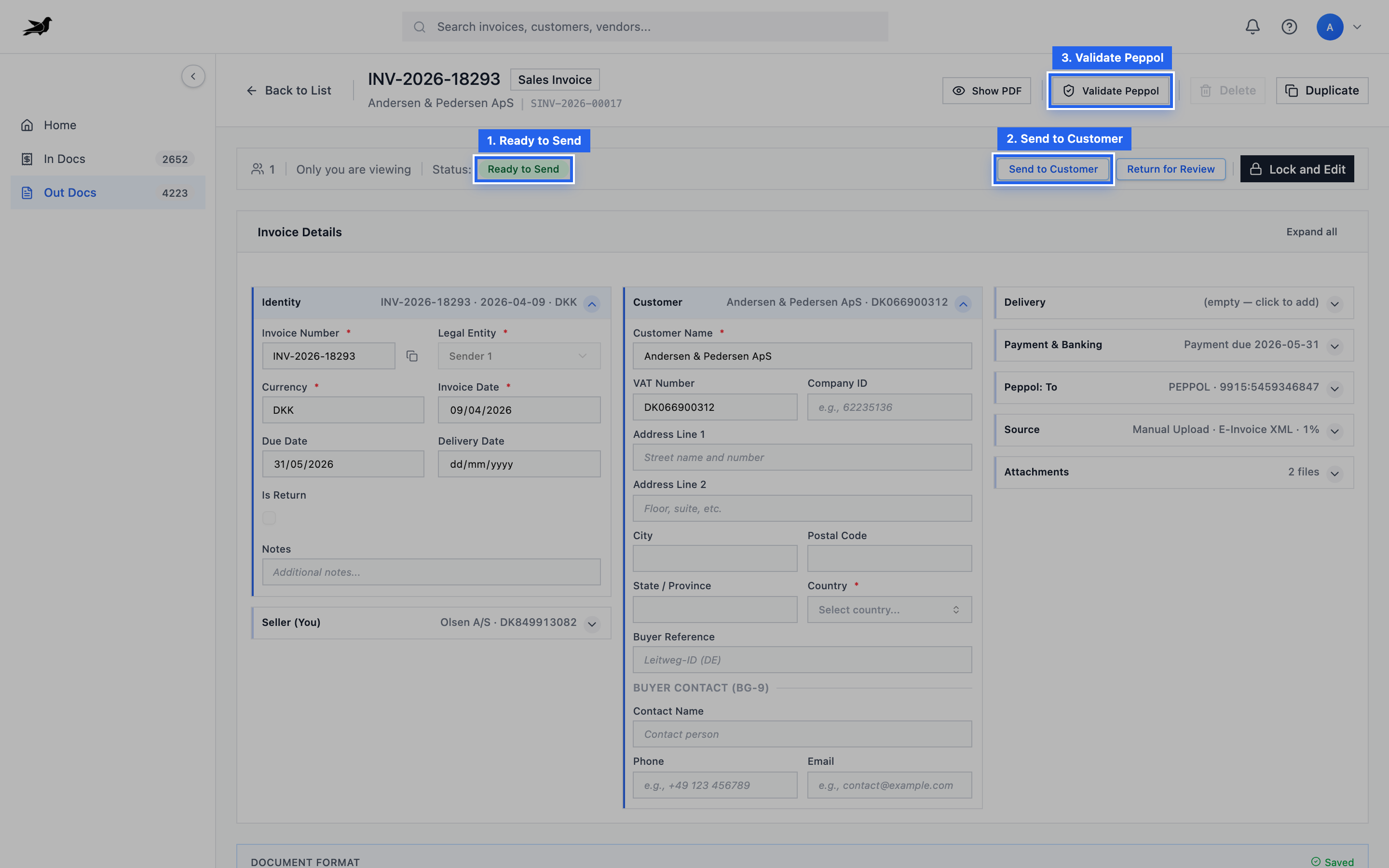
When status is Ready to Send, run Send to Customer. Optionally Validate Peppol first; use Lock and Edit if fields need correction.
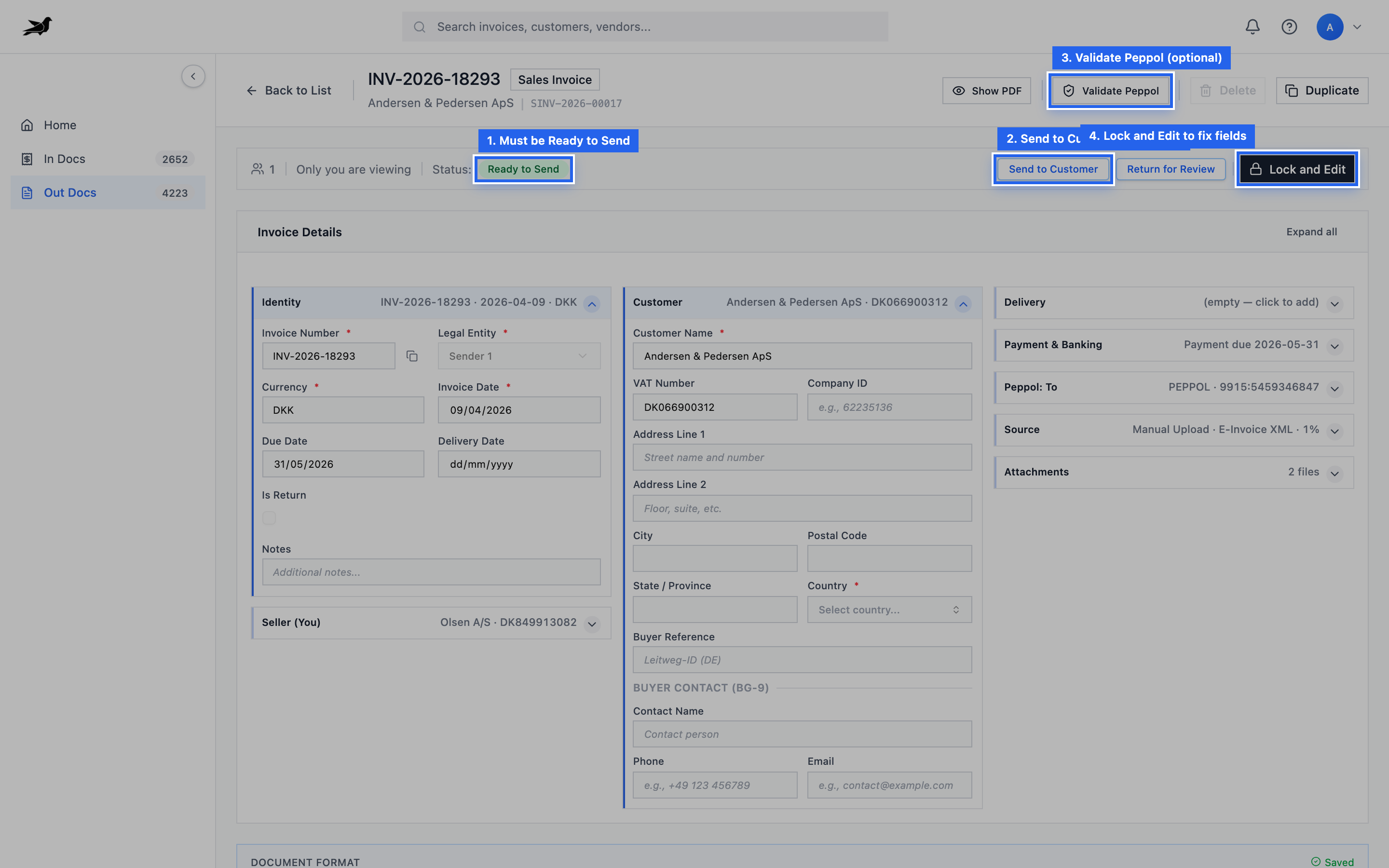
Primary actions: Send to Customer, Validate Peppol, and Lock and Edit for corrections before send.
Optionally set the PEPPOL document format before sending:
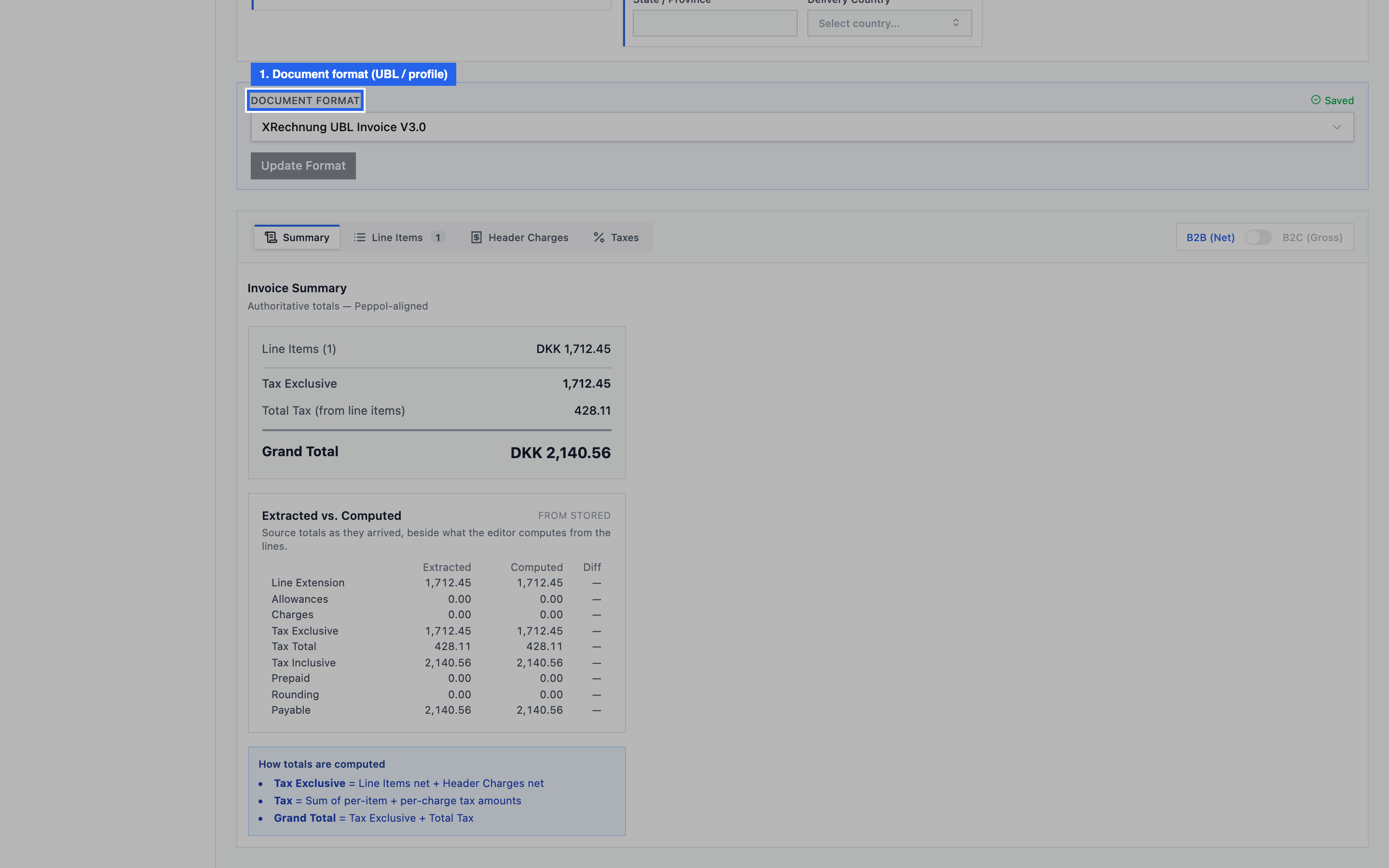
Document format chooses the PEPPOL document type. Leaving it empty sends Peppol BIS Billing 3.0 UBL when the receiver accepts it.
French e-invoicing (CTC) fields apply only when that document type is selected: a Business Process Code and the coded notes on the Notes tab. On BIS 3.0, clear Business Process Code, and keep a single note unless both parties are German. When the selected format is XRechnung, send also requires Payment IBAN and the seller contact name, phone, and email; Buyer Reference is the Leitweg-ID.
Tapr builds XML from invoice fields (or converts an uploaded e-invoice, attaching the original Factur-X PDF when the send is plain UBL or CII), validates, and transmits via AS4. Selecting France Factur-X forwards that uploaded PDF as the hybrid.
Send failed
Section titled “Send failed”If send fails:
- State may become Send Failed or remain Ready to Send with sending errors.
- Read field-level validation messages when shown.
- Fix receiver ID, addresses, tax, charges, or preceding references.
- Retry Send to Customer.
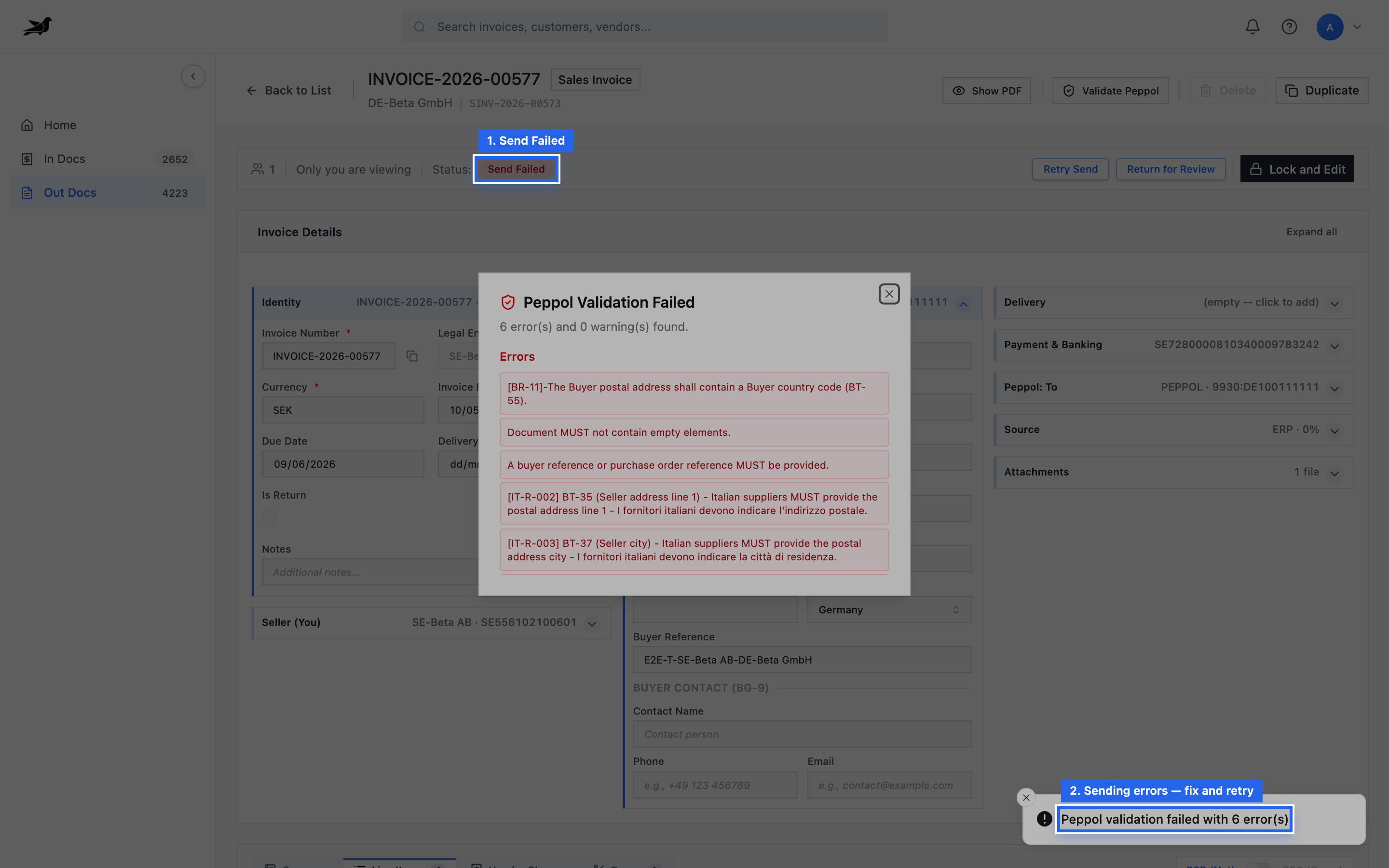
Send Failed: read the Peppol validation errors (or sending errors), fix the fields, then Retry Send.
MLR (Message Level Response)
Section titled “MLR (Message Level Response)”After send, the receiver’s access point may return an MLR. Tapr stores MLR status on the sales invoice (for example accepted, acknowledged, or rejected with reason). Use this to confirm network-level delivery, not just “send button succeeded.”
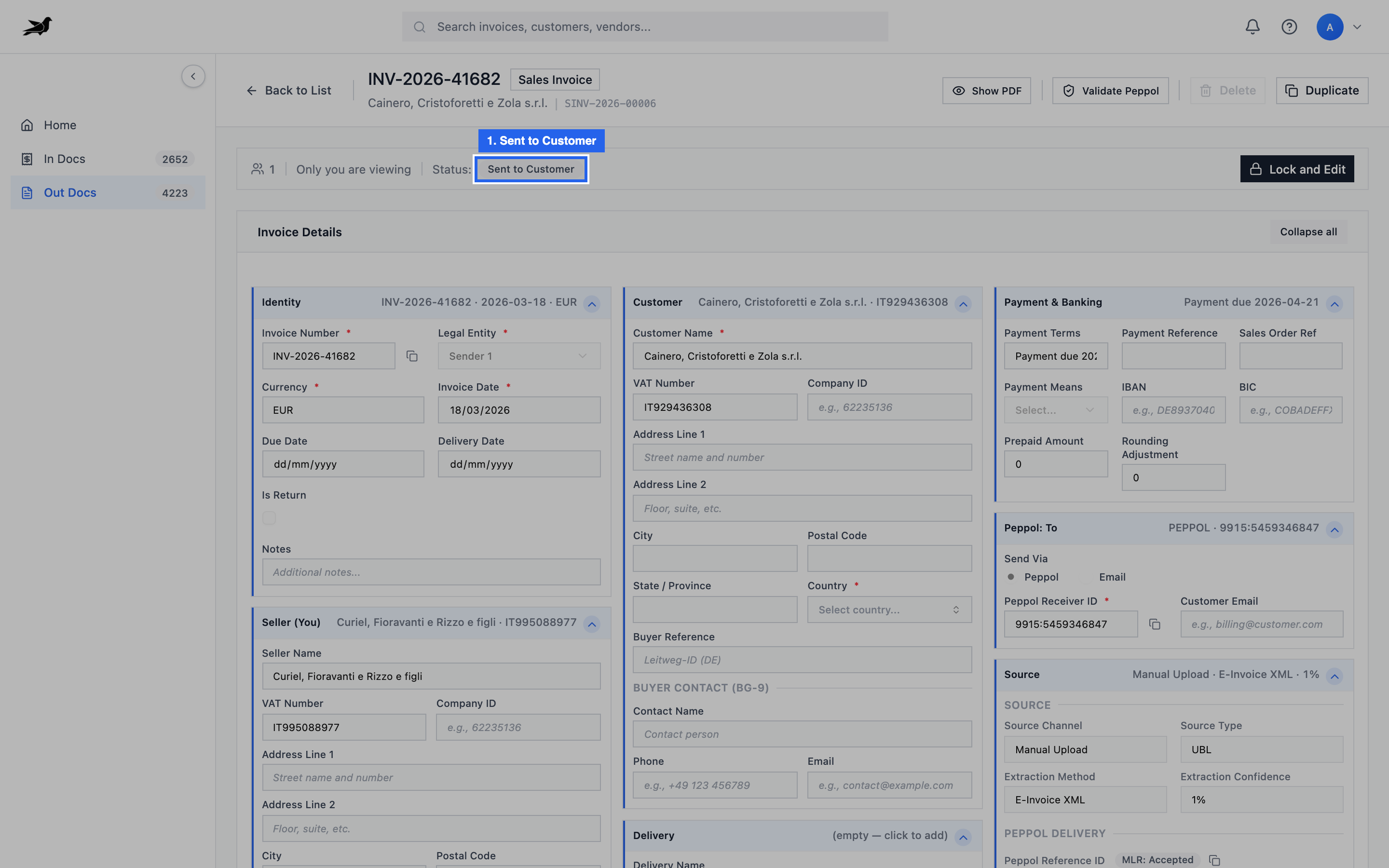
After a successful send, status is Sent to Customer. Expand Peppol: To / PEPPOL delivery fields to see MLR (for example MLR: Accepted).
Successful send state:
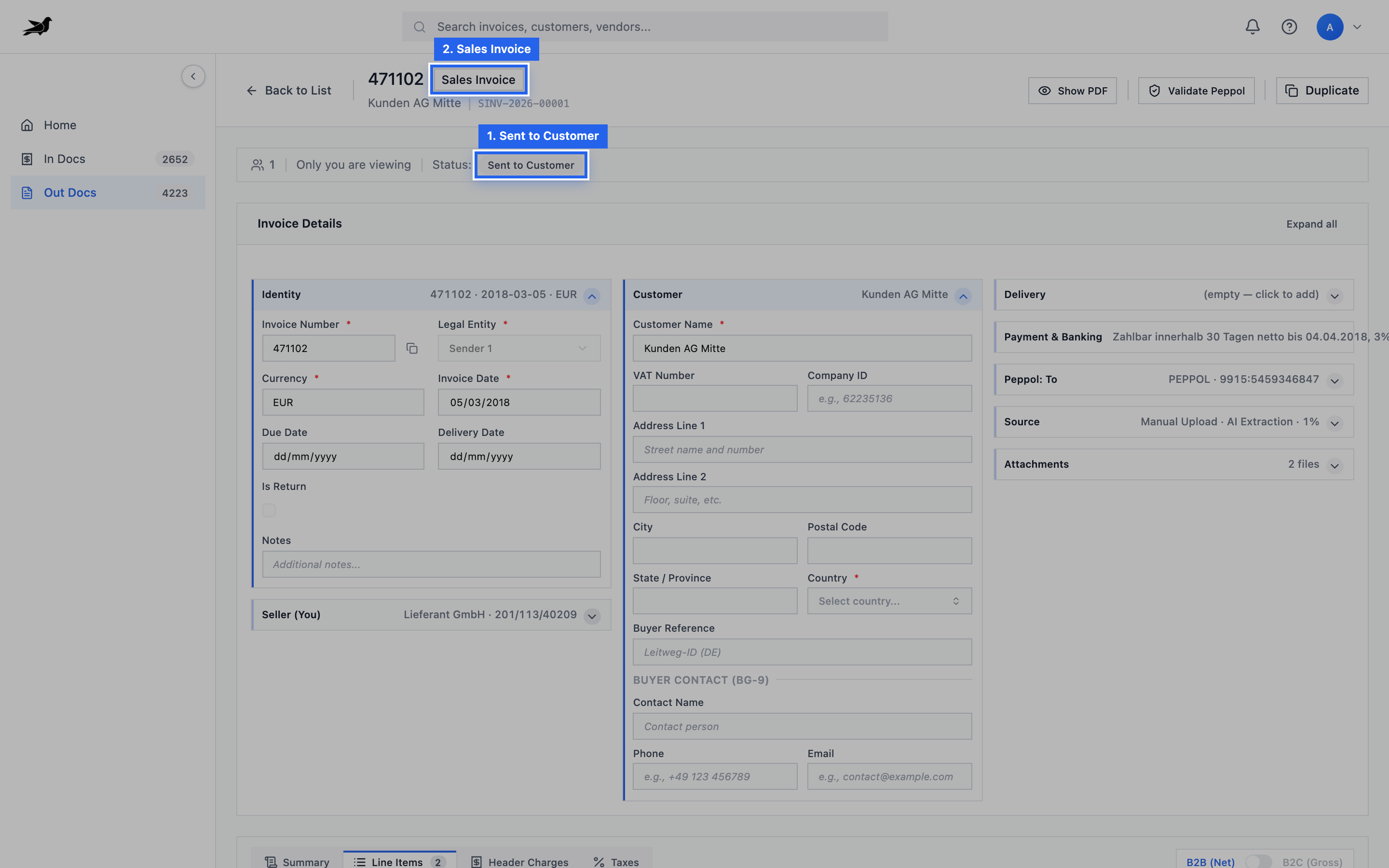
Sent to Customer means the send action completed; still confirm MLR when the network responds.
Details: MLR & Invoice Response.
ERP-sourced invoices
Section titled “ERP-sourced invoices”For invoices fetched from an ERP, Tapr can sync status back (fetched → sent → delivered / failed) when the connector supports it. Keep the ERP document marked ready for PEPPOL only once data is final.
In Out Docs, ERP-sourced rows typically show Channel = ERP (or similar) so you can tell them apart from Email, API, and Manual Upload.