Tapr Settings Overview
Overview
Section titled “Overview”Tapr Settings is the single site-wide configuration document on the Frappe desk (not Invoice Manager). Day-to-day AP/AR work stays in /flow; one-time and admin setup lives here.
Typical path: https://your-site.tapr.ch/app/tapr-settings
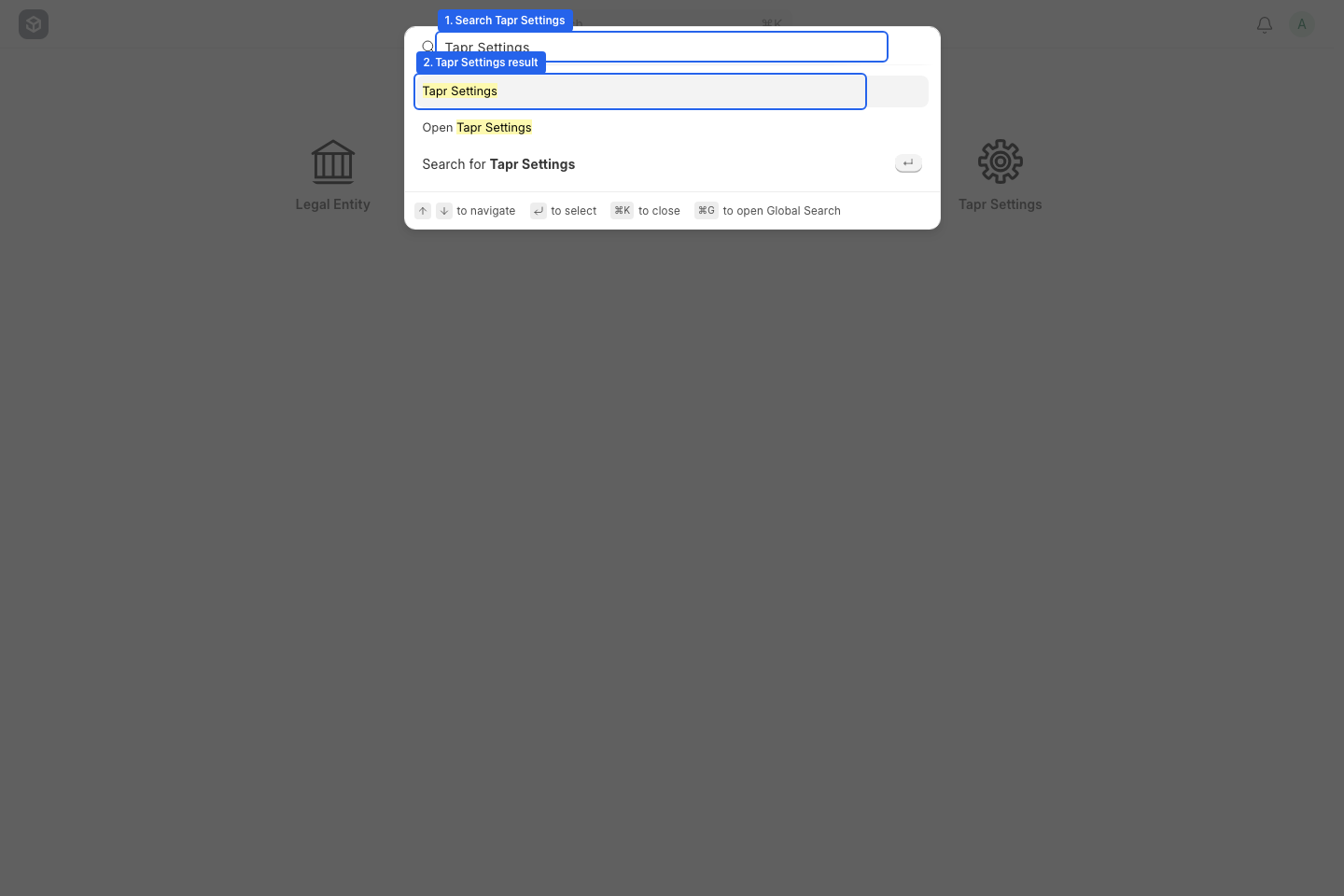
Search the desk for Tapr Settings (or open /app/tapr-settings) to load the configuration form.
How it is organized
Section titled “How it is organized”The form uses tabs. Change a section, then Save.
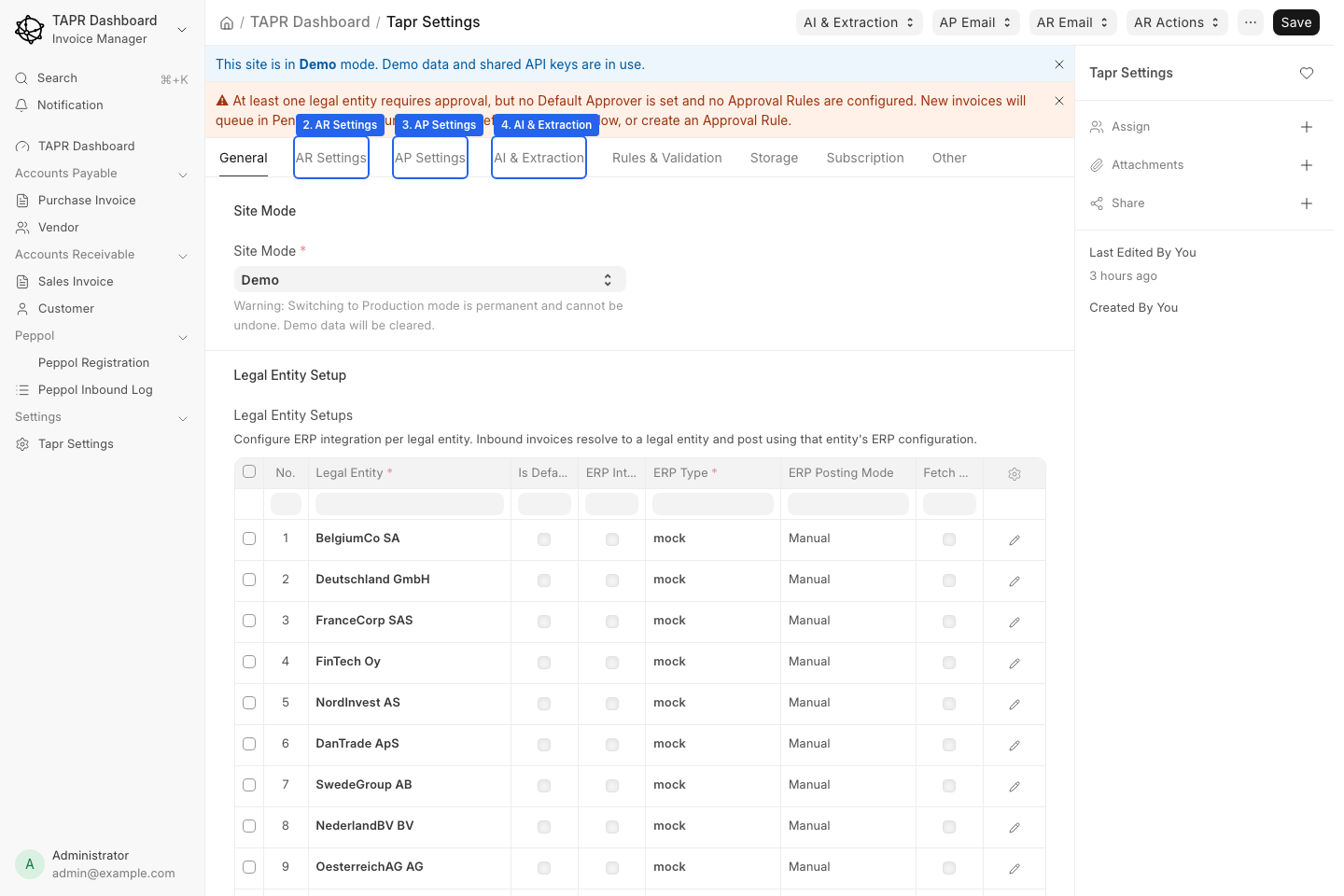
Primary tabs include General, AR Settings, AP Settings, and AI & Extraction.
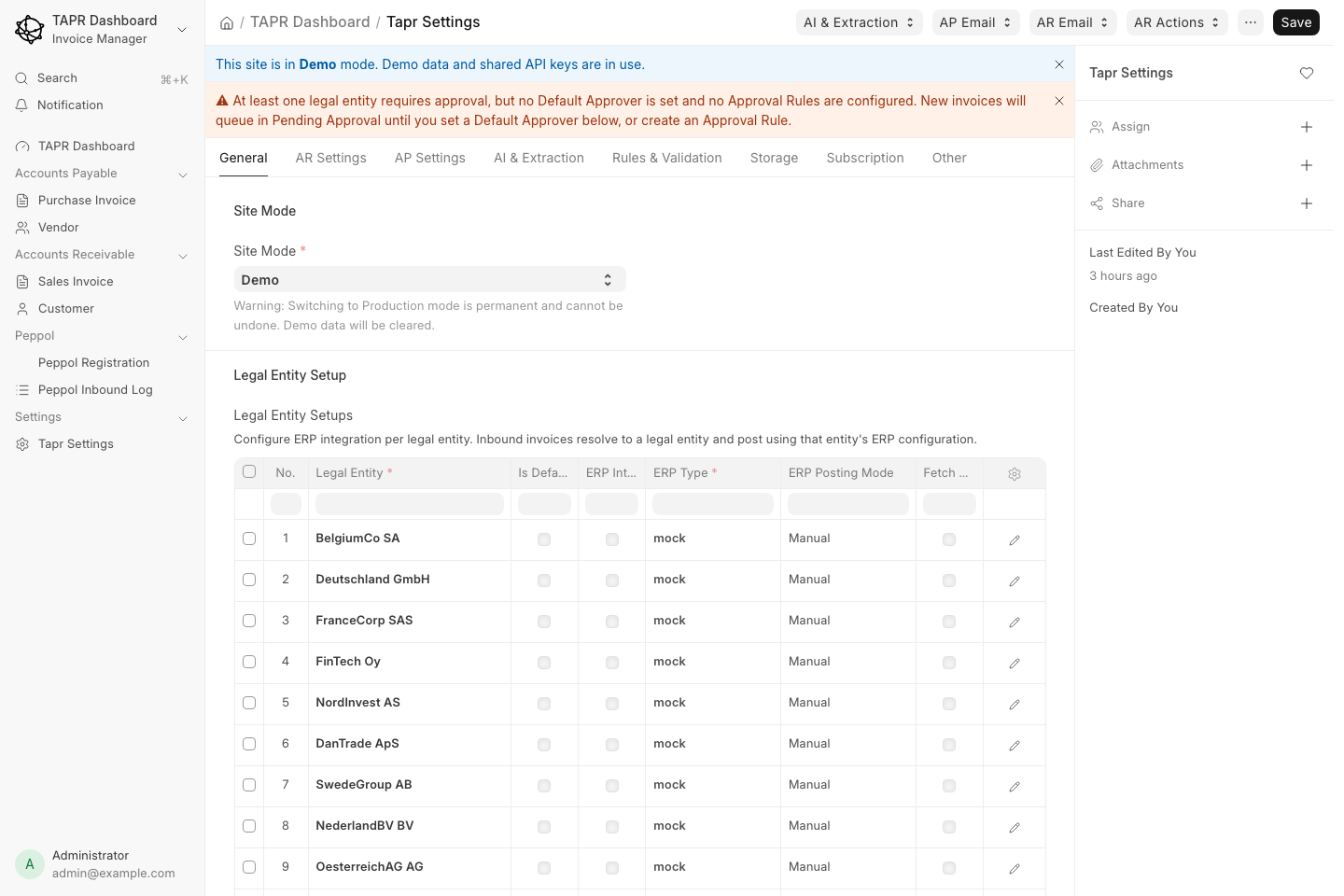
Always Save after changes. This screenshot predates the SFTP tab. The current tabs are the ones in the table below, including SFTP.
| Tab | What it configures | Deeper docs |
|---|---|---|
| General | Legal entities, ERP per entity | Legal Entity, ERP guides |
| AR Settings | AR email mailbox for Out Docs intake | AR Email Configuration |
| AP Settings | AP email intake, Azure / SharePoint | AP Settings |
| AI & Extraction | BYOK providers, models, fallback, assistant | AI Provider Comparison |
| Rules & Validation | Approval / validation related setup surfaces | Approval Configuration |
| Storage | Object / file storage for documents | Storage |
| SFTP | Push approved Purchase Invoices to, and pick up Sales Invoice files from, an SFTP server | SFTP Exchange |
| Subscription | Plan, metering, billing-related fields | Subscription |
| Other | Peppol network, logging, and misc site options | Logging |
General
Section titled “General”Legal Entity Setup — the per-company table for seller identity display, ERP connection, AR ERP fetch, approval, and invoice defaults.
Legal Entity Setup is the content of General. An older screenshot of this tab showed Site Mode, which has been removed, so it is not shown here.
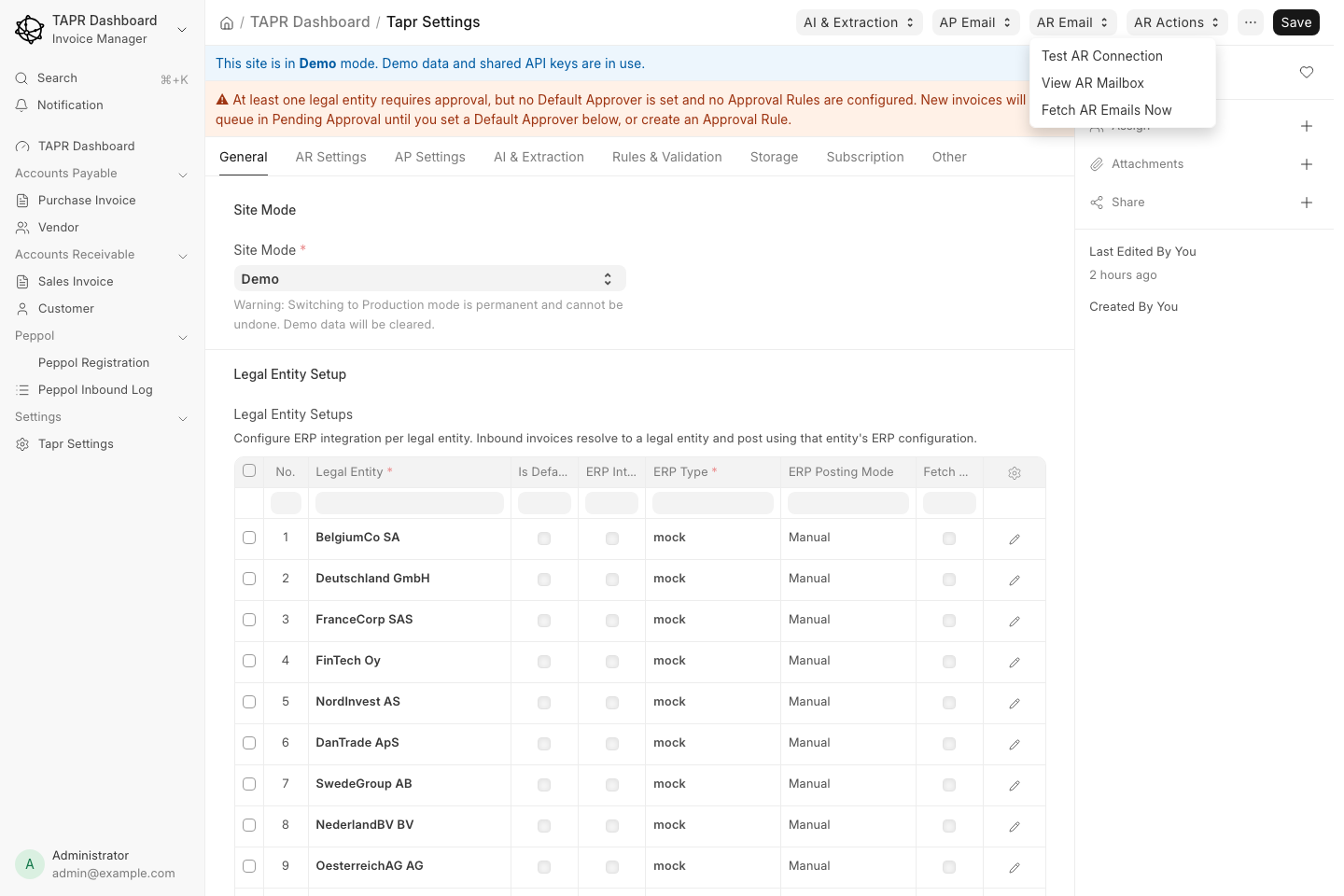
Each row is one company. Click the Edit (pencil) control on a row for the full form.
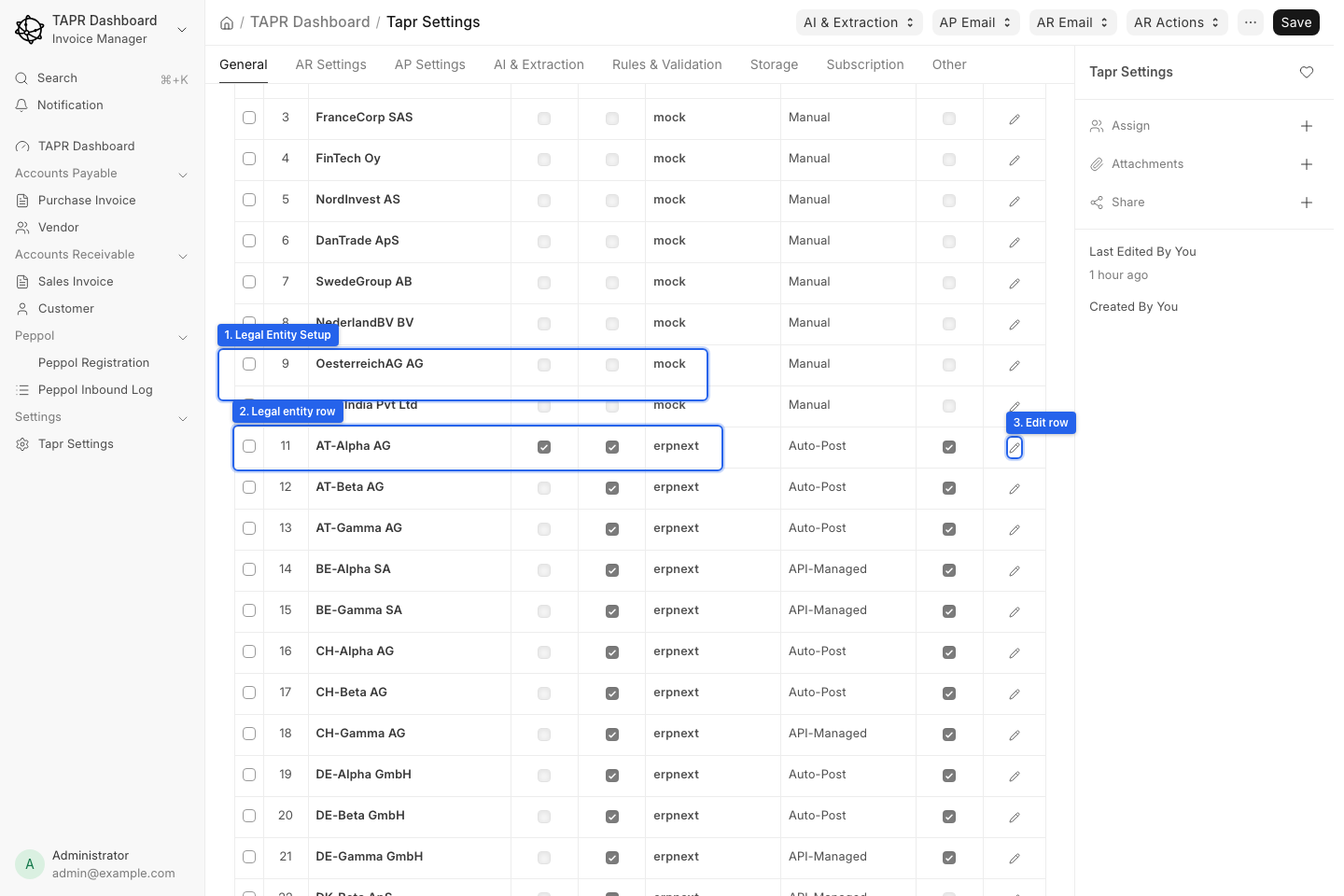
The row editor covers identity (auto-fetched tax/country/currency), Invoice Defaults, Approval Workflow, and ERP Integration (type, URL, secrets, AR fetch).
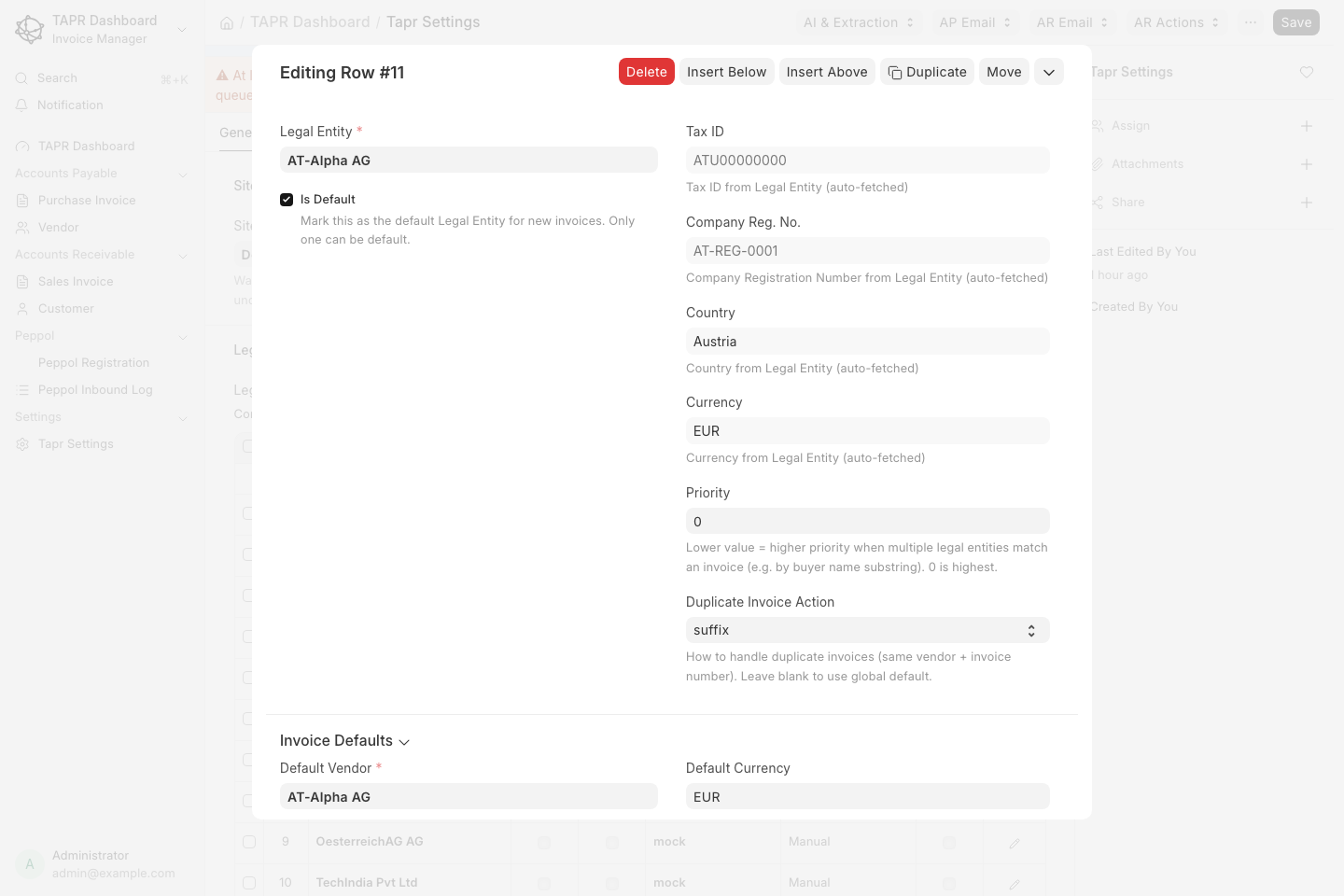
Example row: default flag, priority, duplicate action, plus collapsible sections for defaults, approval, and ERP.
Full field reference: Legal Entity Setup. Connector steps: ERP integrator guides.
AR Settings
Section titled “AR Settings”Configures the AR email channel: enable the mailbox, set password, test and fetch mail. Processed attachments become Sales Invoices in Out Docs.
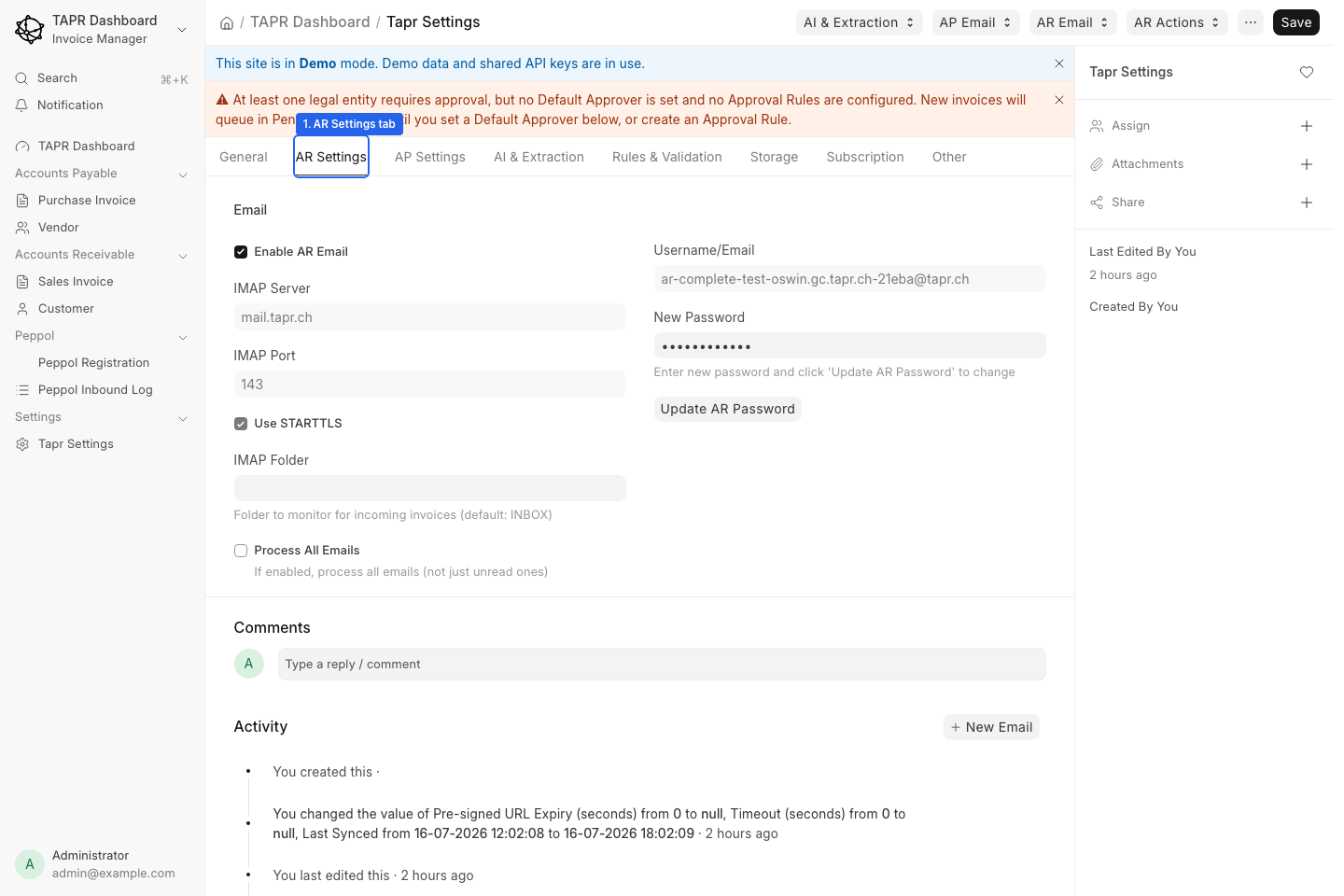
Enable AR Email, note the site mailbox address, and update the password when required.
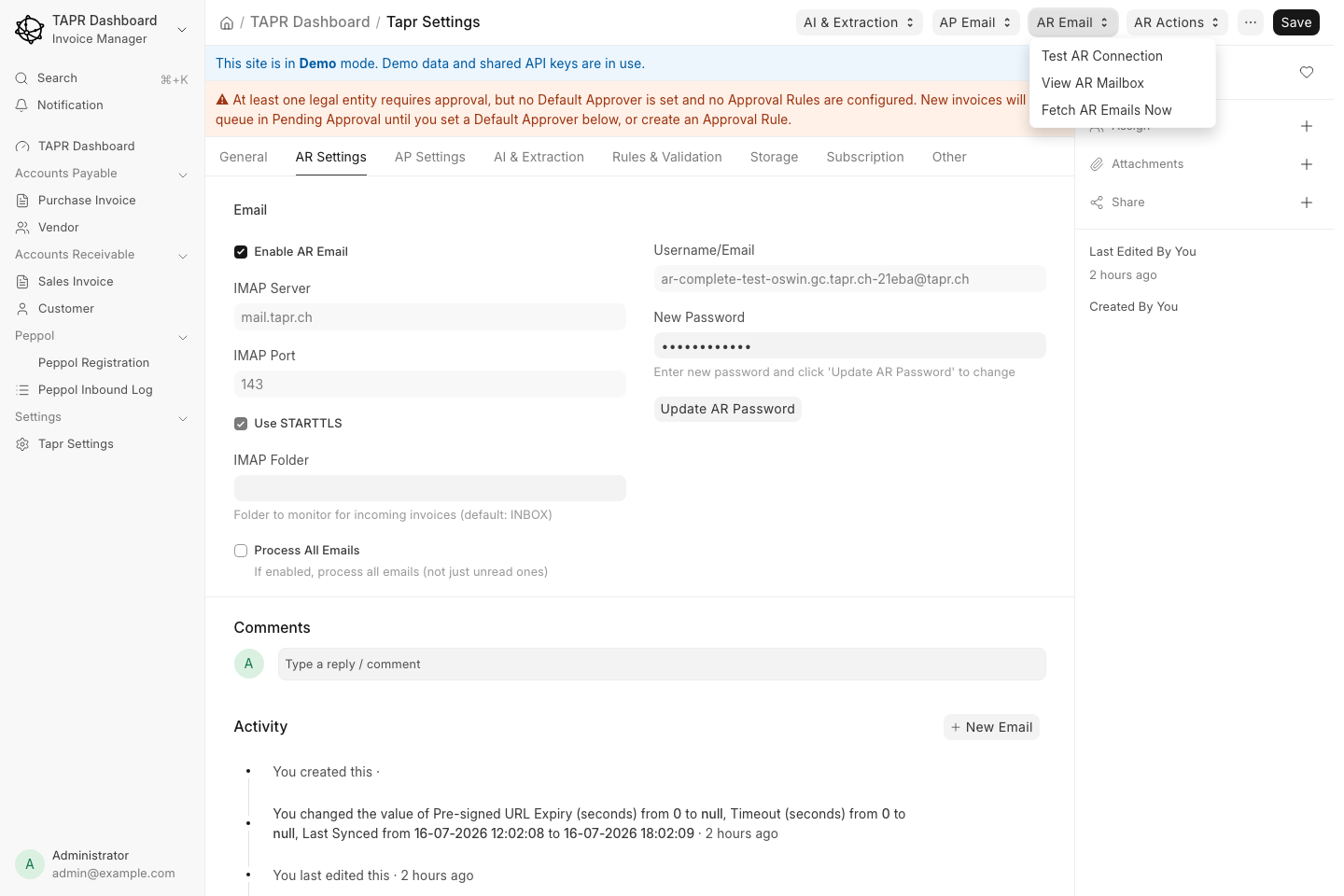
Use the AR Email / AR Actions menus to test the connection, open the mailbox view, or Fetch AR emails now.
Full field reference: AR Email Configuration.
AP Settings
Section titled “AP Settings”Enables and configures automated AP intake channels: Email Intake (IMAP), Azure Blob, and SharePoint. PEPPOL receive and manual upload in Invoice Manager do not require this tab (PEPPOL still needs registration / legal entity setup).
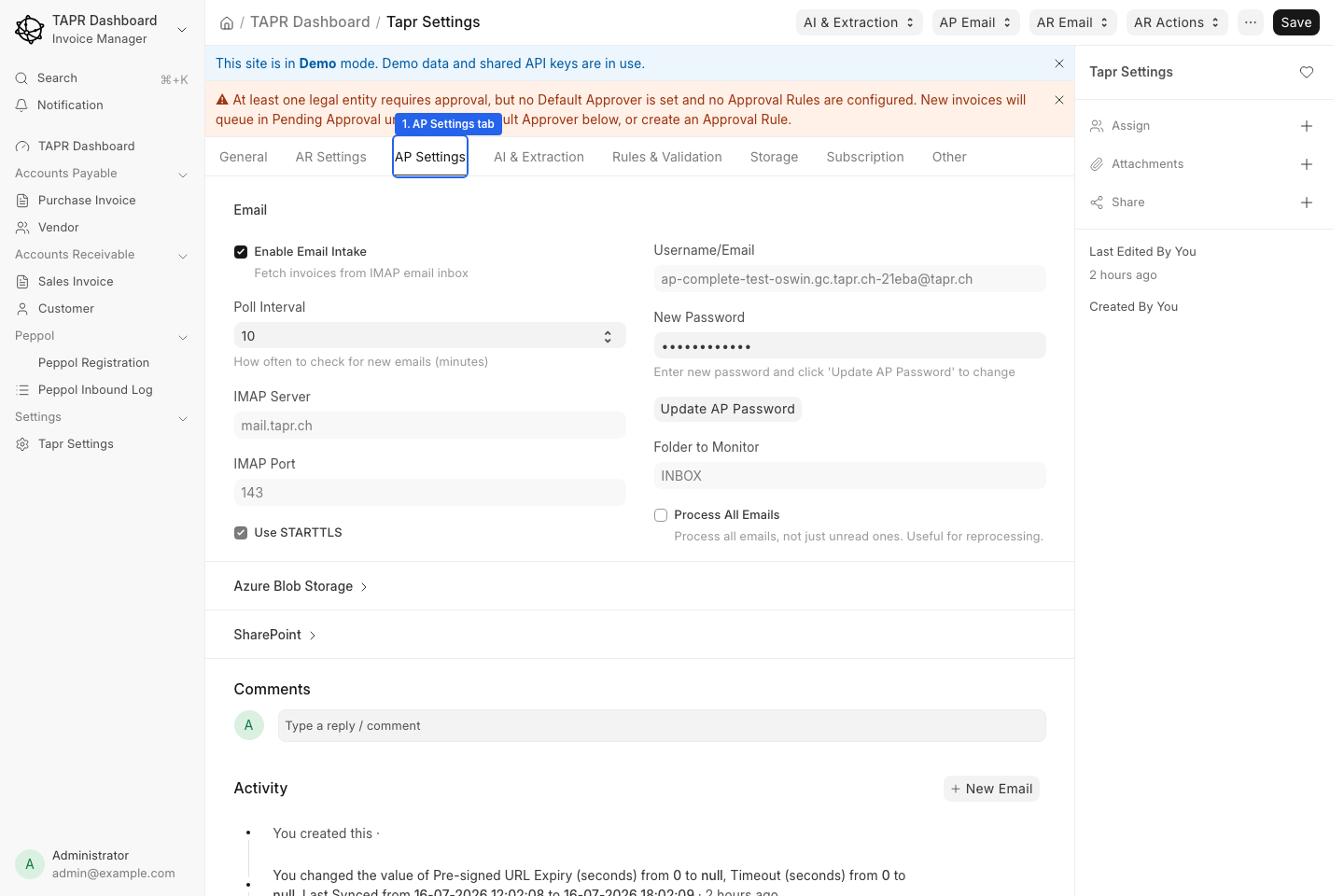
AP Settings opens with Email Intake fields; expand Azure Blob / SharePoint for cloud folders. Details: AP Settings and Intake Overview.
AI & Extraction
Section titled “AI & Extraction”Bring-your-own-key (BYOK) setup for plain PDF/image extraction (Upload and AR Email). Structured e-invoices with embedded XML often extract without AI.
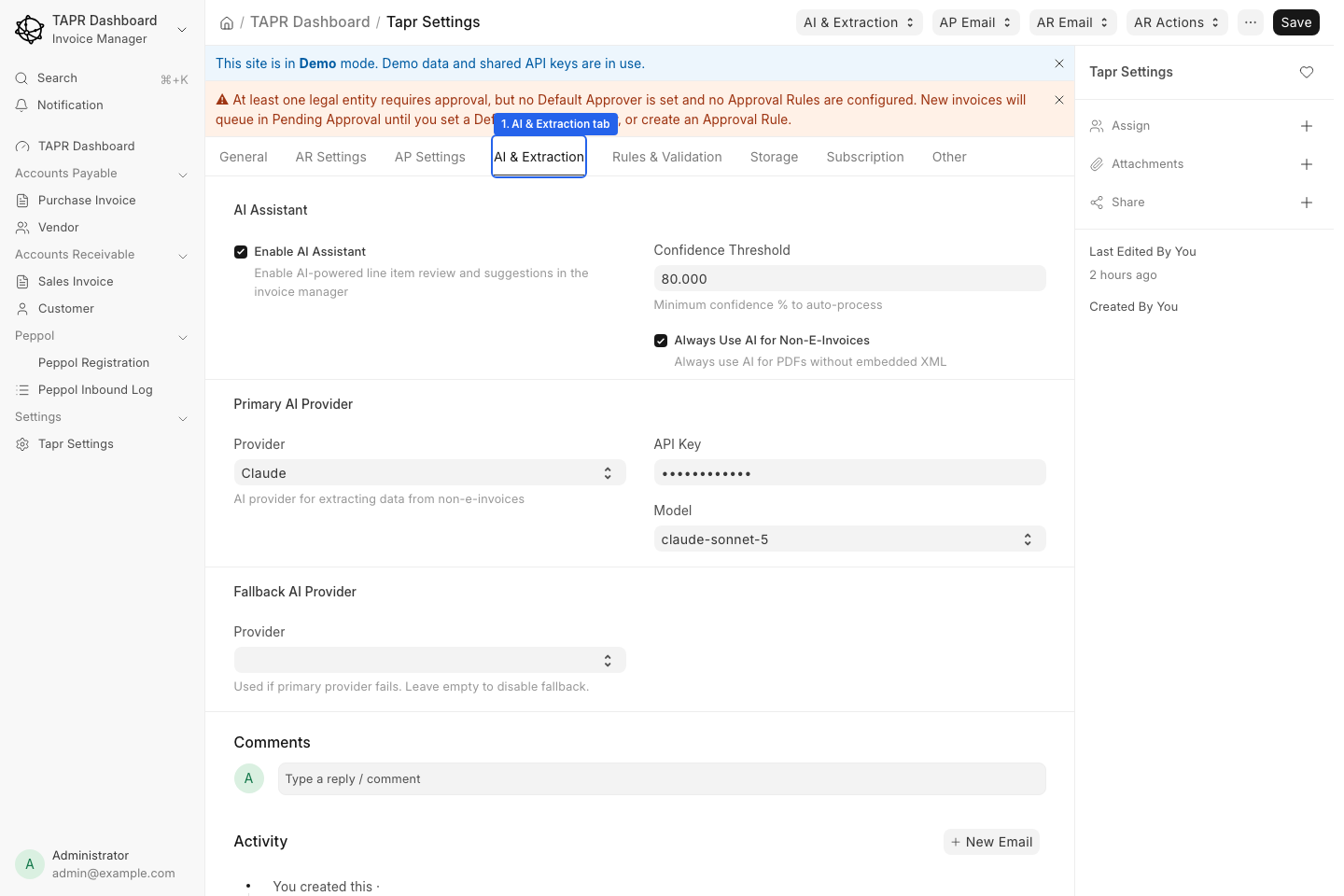
Choose provider (Claude, Gemini, OpenAI, …), enter API key, pick a model, then Save.
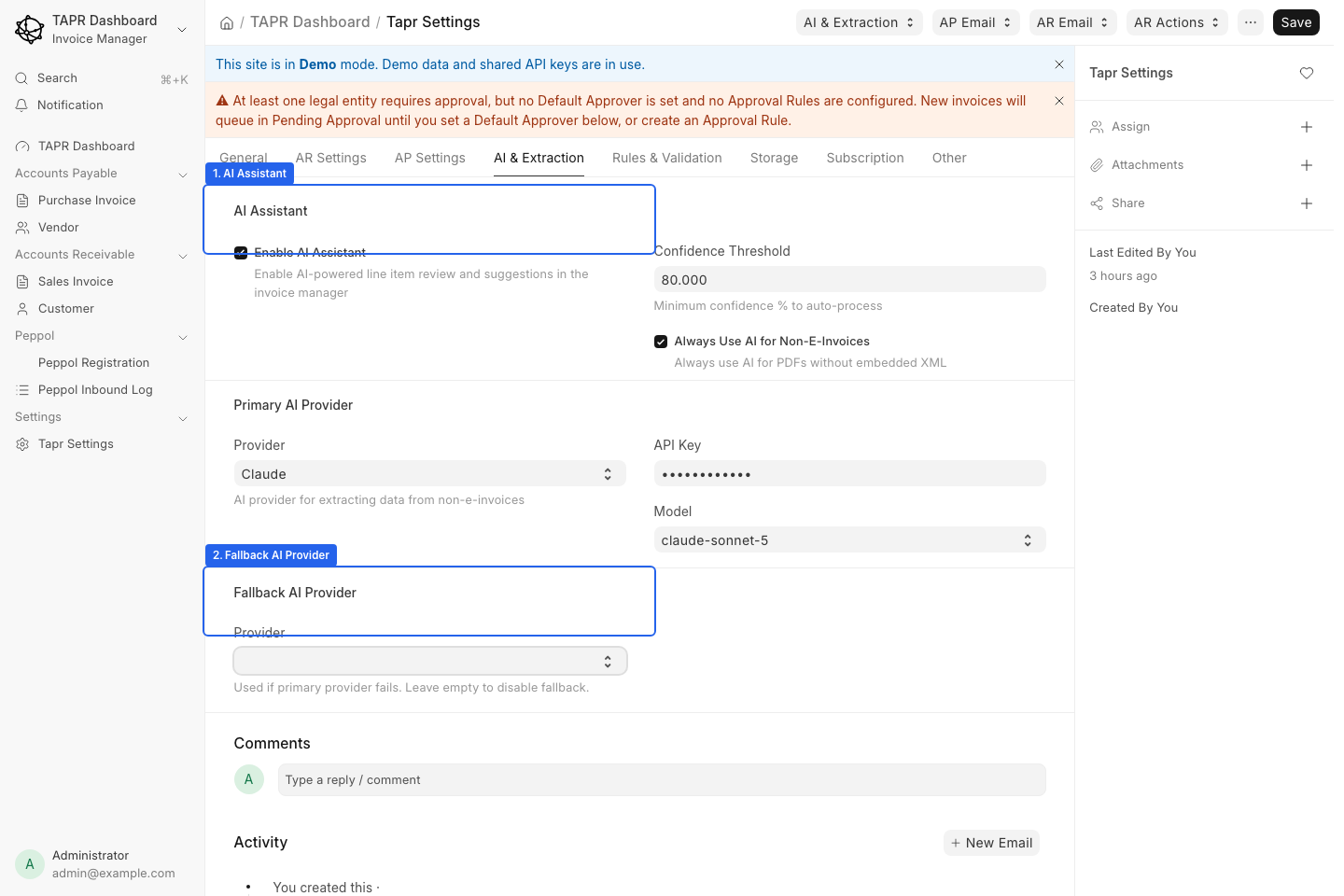
AI Assistant options and optional Fallback AI Provider (leave empty to disable). Primary provider stays above.
See AI Provider Comparison, Claude, Gemini, OpenAI.
Rules & Validation
Section titled “Rules & Validation”Surfaces related to approval rules, duplicates, and validation behavior used when clerks submit and managers approve.
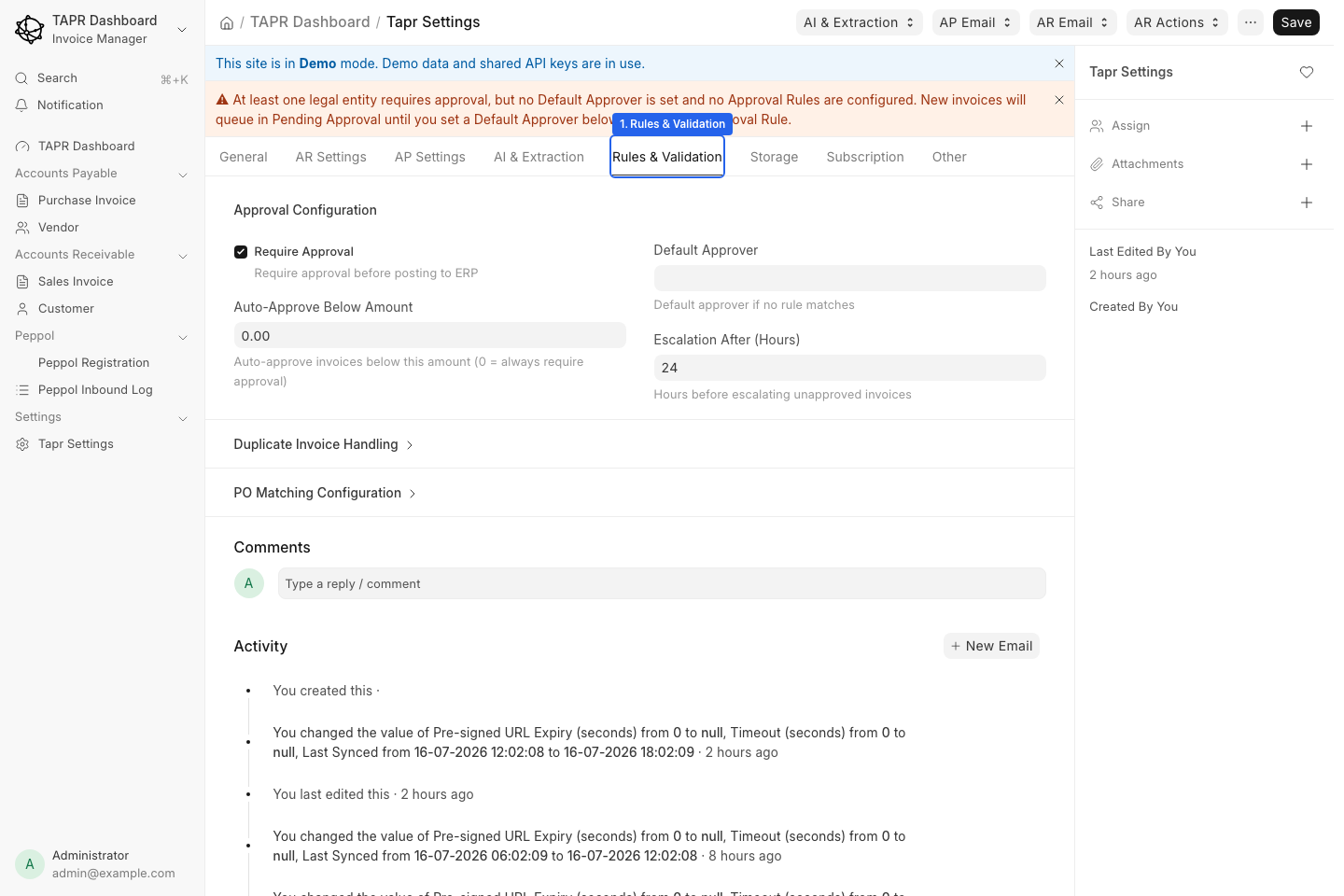
Configure routing and validation-related options here; deep dives live under Rules & Approvals.
Storage
Section titled “Storage”Where invoice files and PEPPOL artifacts are stored. Modes are Default (platform-managed), S3 (your bucket, including S3-compatible endpoints via Endpoint URL), or API (forward to your callback). See Storage.
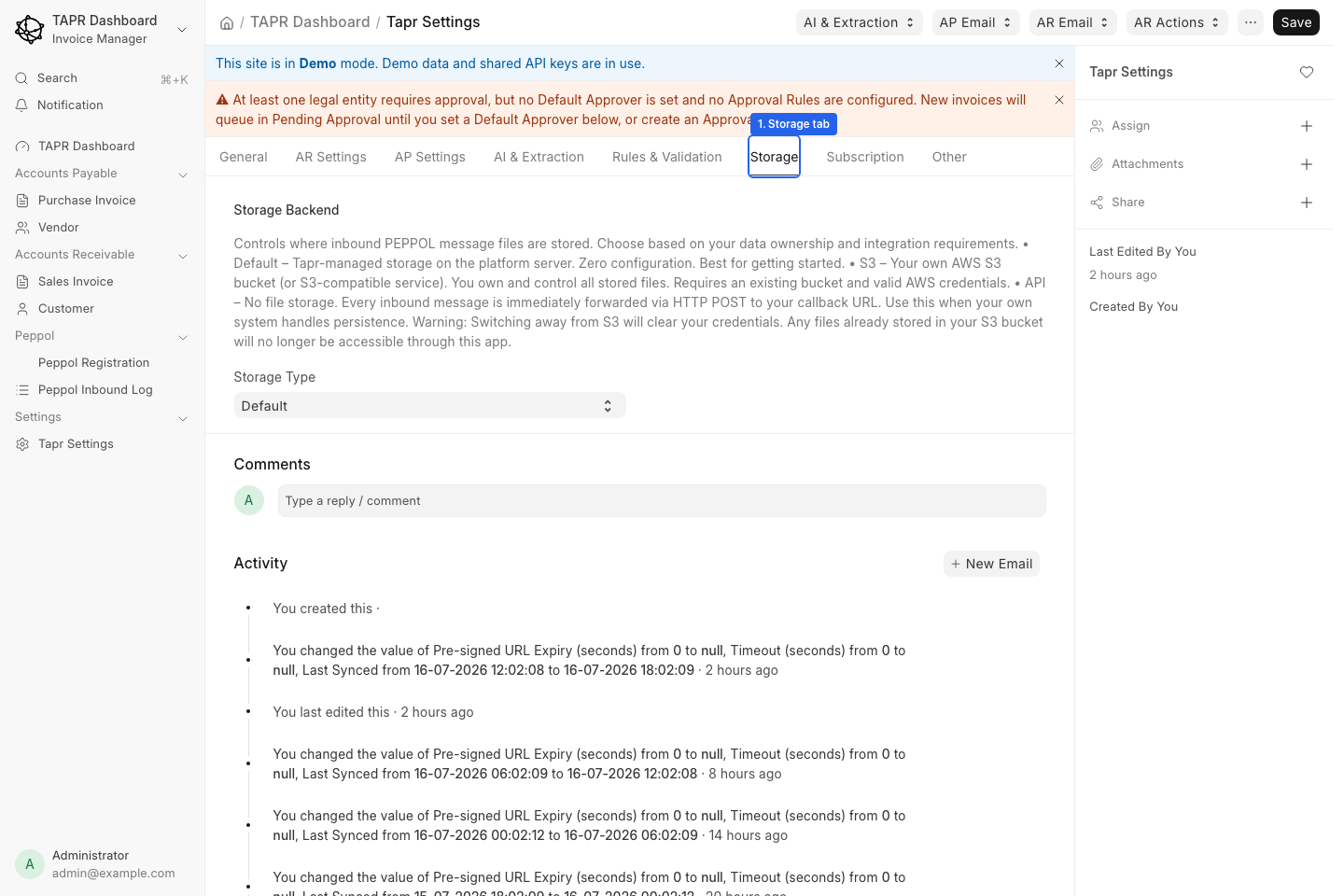
Storage Type and related options on the Storage tab (Default is fine for most sites).
Connects Tapr to an SFTP server for trading partners or systems that exchange files instead of using PEPPOL or an API. Approved Purchase Invoices are uploaded there, and Sales Invoice files dropped there are picked up and processed. Enable Enable SFTP, enter host, port, username and a password or private key, then use Test SFTP Connection.
Full field reference: SFTP Exchange.
Subscription
Section titled “Subscription”Plan, usage, and billing-related fields for the site (Cloud metering depends on your product tier).
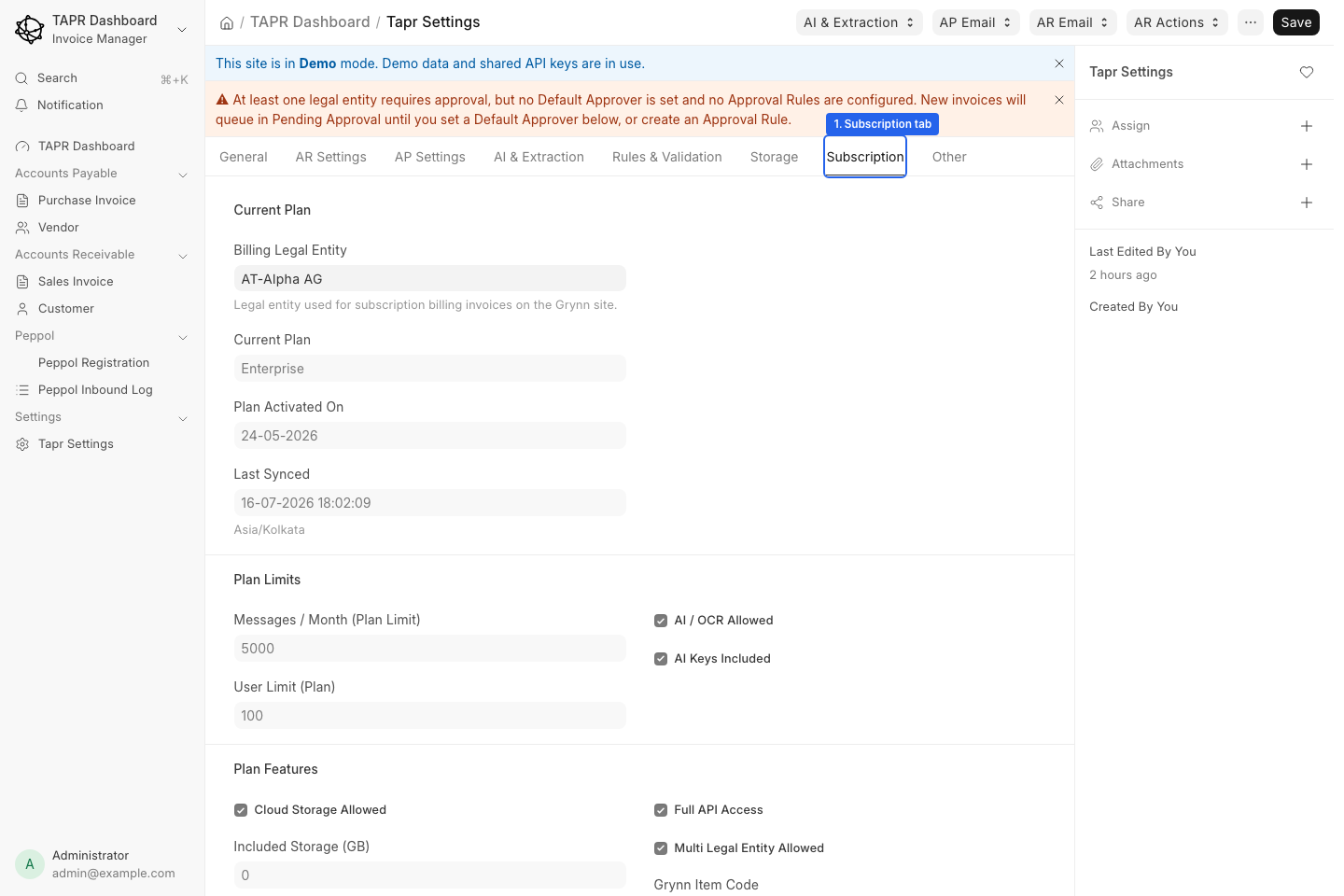
Review plan and usage. See Subscription.
Other (Peppol network, logging)
Section titled “Other (Peppol network, logging)”Misc site options:
- Peppol Network — Production (default) or Test. Controls which Peppol network participant lookups (SML/SMP) resolve against. Use Test only on non-production sites; picking the wrong network makes receivers look unregistered.
- Logging for troubleshooting AI, PEPPOL, and ERP flows.
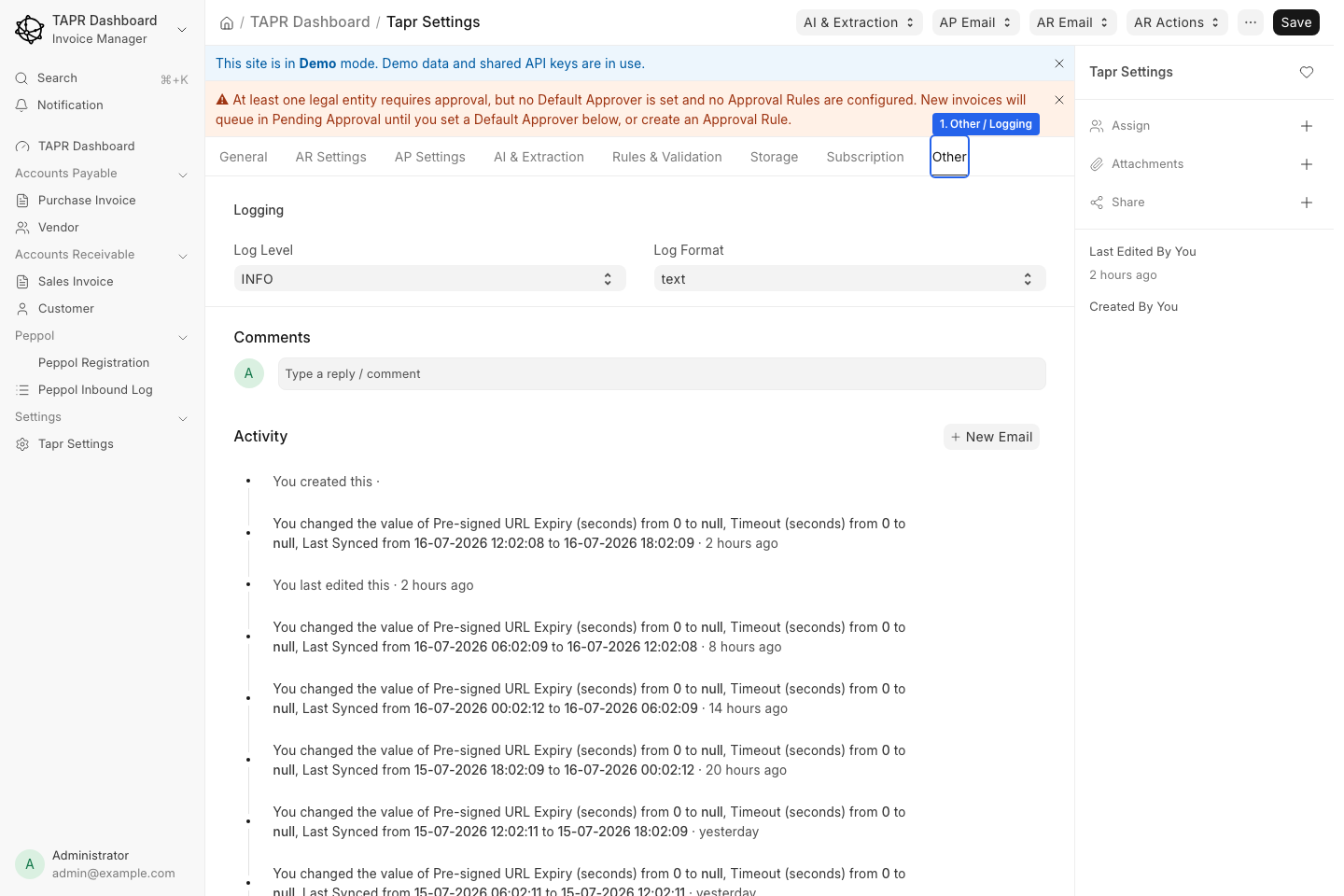
Logging on the Other tab. Peppol Network is on this same tab; this screenshot does not show it yet.
Enable or tune logging when diagnosing issues. See Logging.
Who can change Tapr Settings
Section titled “Who can change Tapr Settings”Usually System Manager (or equivalent) roles. Operators using only Invoice Manager do not need desk access for daily AP/AR work.
Related topics
Section titled “Related topics”- Product Map — where desk setup vs
/flowwork - Go-Live Checklist
- Legal Entity Setup
- PEPPOL Registration