Creating & Sending Sales Invoices
Overview
Section titled “Overview”Outbound (accounts receivable) invoices live in Out Docs inside Invoice Manager at /flow. Once a sales invoice is created and ready, Tapr builds PEPPOL-compliant XML and delivers it to the customer.
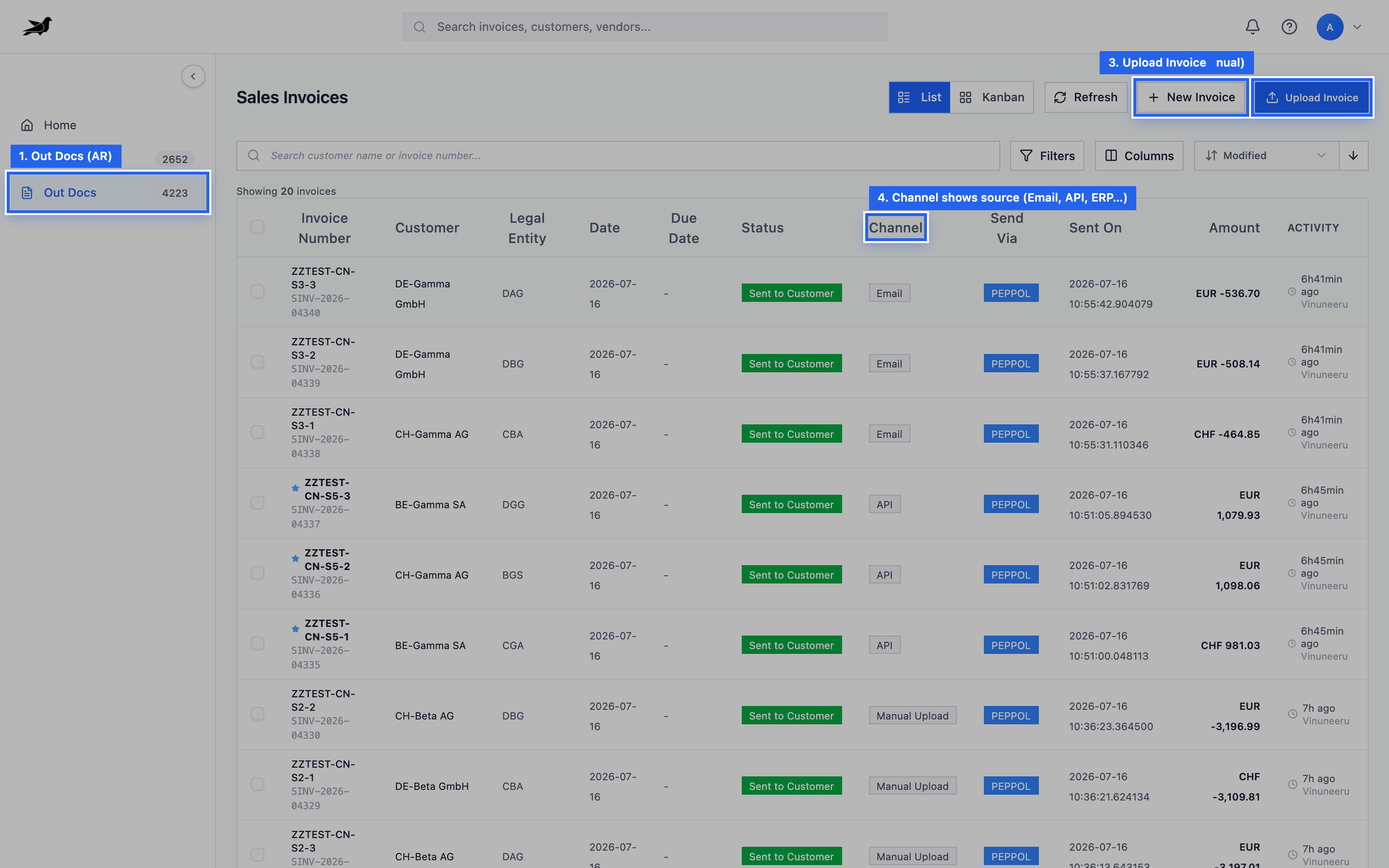
Out Docs (Sales Invoices): open AR work from the sidebar, then create with New Invoice or Upload Invoice.
There are five ways to create sales invoices. Choose based on monthly volume and how much automation you need. All five produce a Sales Invoice in Out Docs. After creation, use Reviewing & Sending Sales Invoices for approval, PEPPOL send, and MLR.
Choose your path
Section titled “Choose your path”| Option | Volume guideline | AI key required | Ideal use case |
|---|---|---|---|
| New Invoice (manual) | Under 5 / month | No | Occasional one-off invoices |
| Upload Invoice | 5–20 / month | Yes (BYOK) | PDF or image files in the UI |
| AR Email | 5–20 / month | Yes (BYOK) | Email a PDF to a Tapr mailbox |
| ERP Integration | Bulk | No | Invoices already created in an ERP |
| API Integration | Bulk | No | Custom systems or pre-built XML |
All five paths land as rows in Out Docs. The Channel column shows how each invoice entered Tapr:
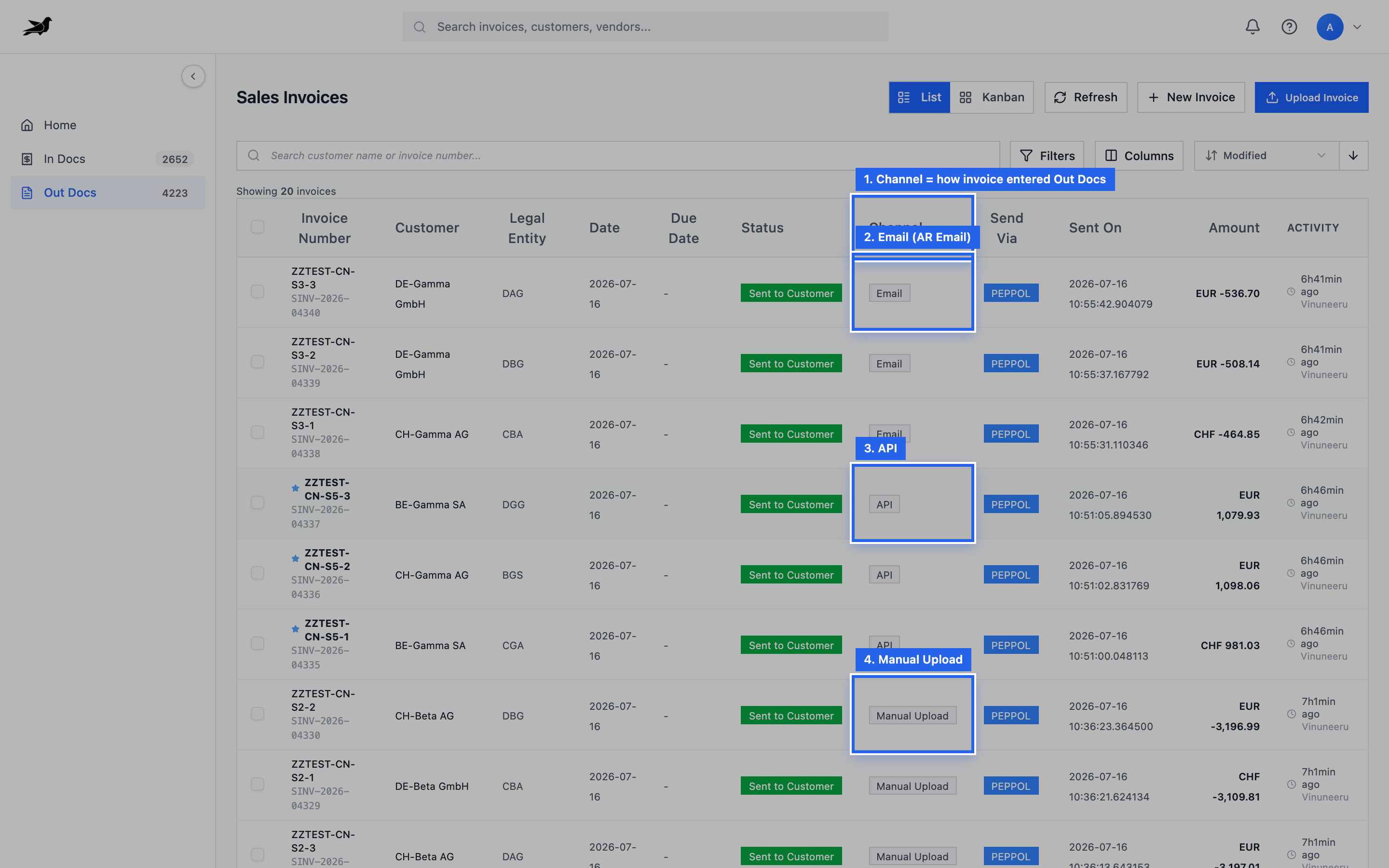
Channel values such as Email, API, and Manual Upload map to the create options below (ERP appears when AR ERP fetch is used).
Prerequisites
Section titled “Prerequisites”Before you create or send outbound invoices:
- Legal Entity configured (seller identity, addresses, tax IDs)
- PEPPOL registration approved for that legal entity
- Access to Invoice Manager → Out Docs
- For Upload and AR Email only: an AI provider API key in Tapr Settings → AI & Extraction (bring your own key)
Customer PEPPOL Receiver ID should be known (or resolvable) before send.
Shared lifecycle
Section titled “Shared lifecycle”After creation, every sales invoice moves through the same states:
| State | Meaning |
|---|---|
| Draft | Editable; manual New Invoice starts here |
| Pending Review | Data needs a human check |
| Pending Approval | Waiting on an approver (if required) |
| Ready to Send | Cleared for PEPPOL transmission |
| Sent to Customer | Successfully delivered |
| Send Failed | Transmission or validation failed — fix and retry |
| Rejected | Rejected in approval; return to draft or review |
Send step: open the invoice → confirm receiver ID, amounts, and lines → advance to Ready to Send → Send to Customer. Delivery status (including MLR) updates on the invoice when the network responds.
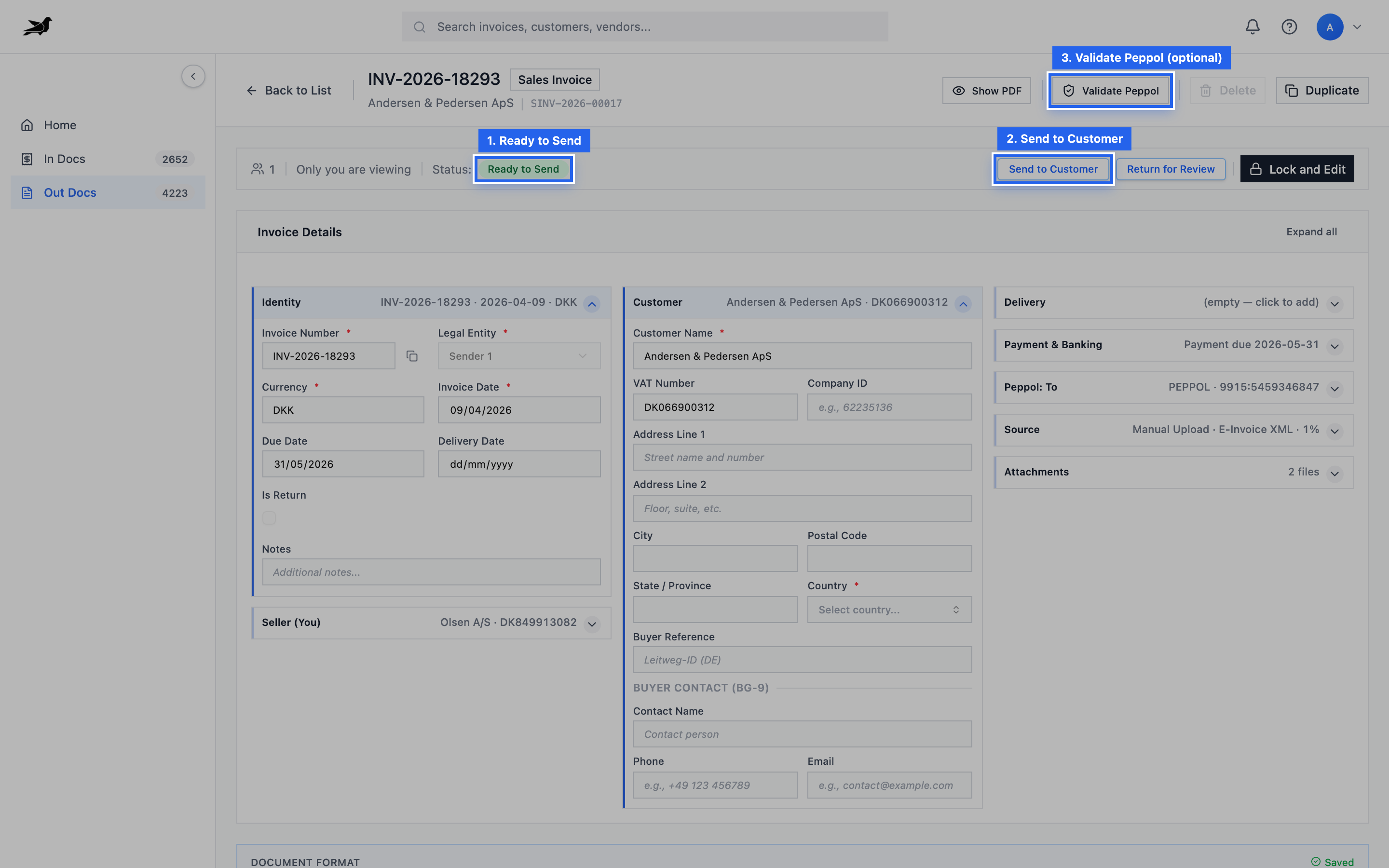
After creation and review, status Ready to Send unlocks Send to Customer. Optionally run Validate Peppol first.
Full send checklist: Reviewing & Sending Sales Invoices.
Option 1: New Invoice (manual)
Section titled “Option 1: New Invoice (manual)”Best for: under about 5 invoices per month.
AI required: No.
-
Open Invoice Manager and switch to Out Docs.
-
Click New Invoice. From Out Docs, this opens the sales invoice form directly.
If you start from Home instead, the type picker appears — choose Sales Invoice for outbound AR (not Purchase Invoice):
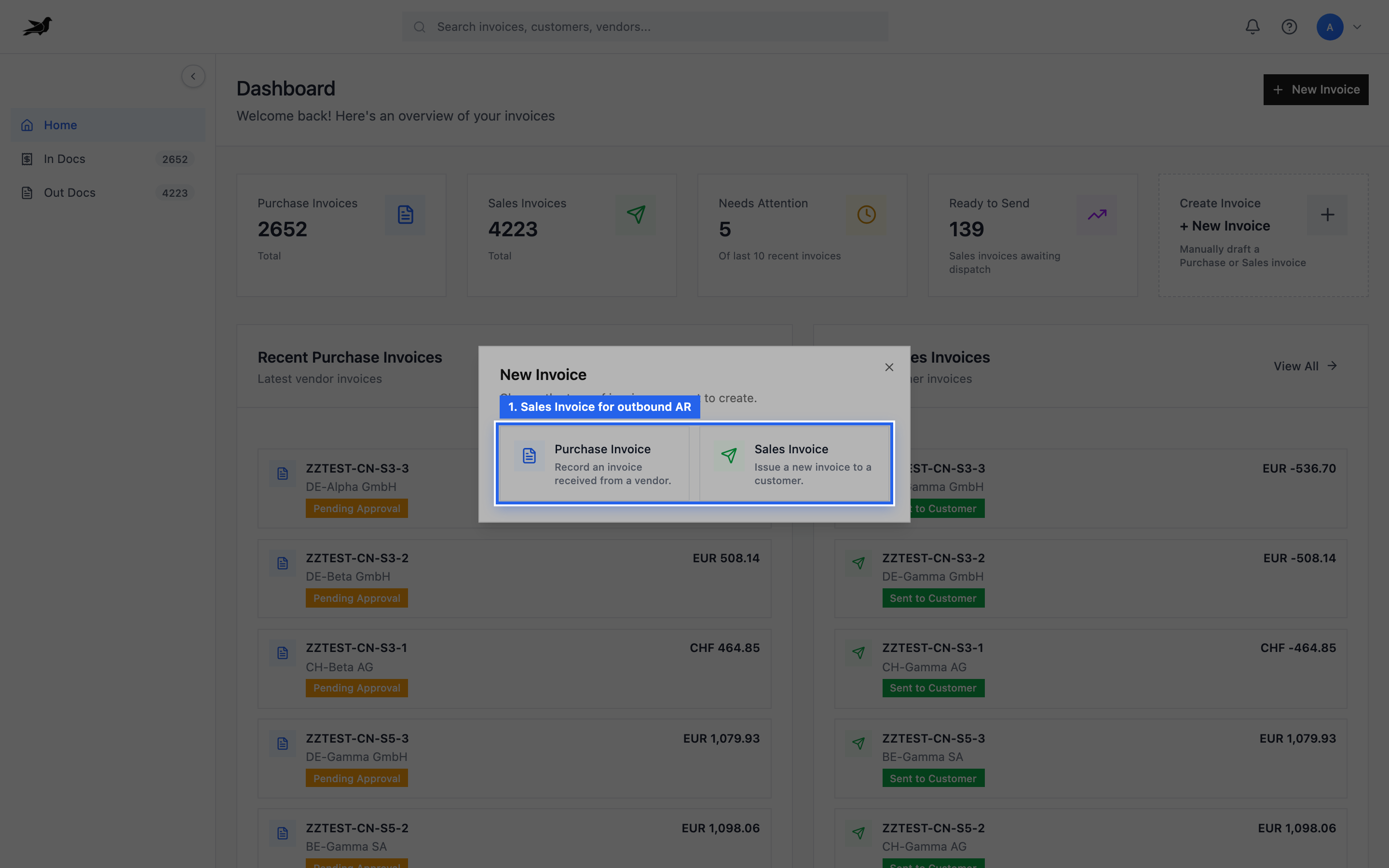
Home → New Invoice → Sales Invoice.
-
Complete the form:
- Legal Entity (required)
- Peppol Sender ID — which of the legal entity’s PEPPOL IDs sends the invoice (defaults to the entity’s default ID; cancelled or rejected registrations are not offered)
- Peppol Receiver ID (required for sales invoices)
- Invoice Date, Currency, Invoice Number
- One line item: description, quantity, unit price
- Customer name if the PEPPOL ID does not resolve to a known party
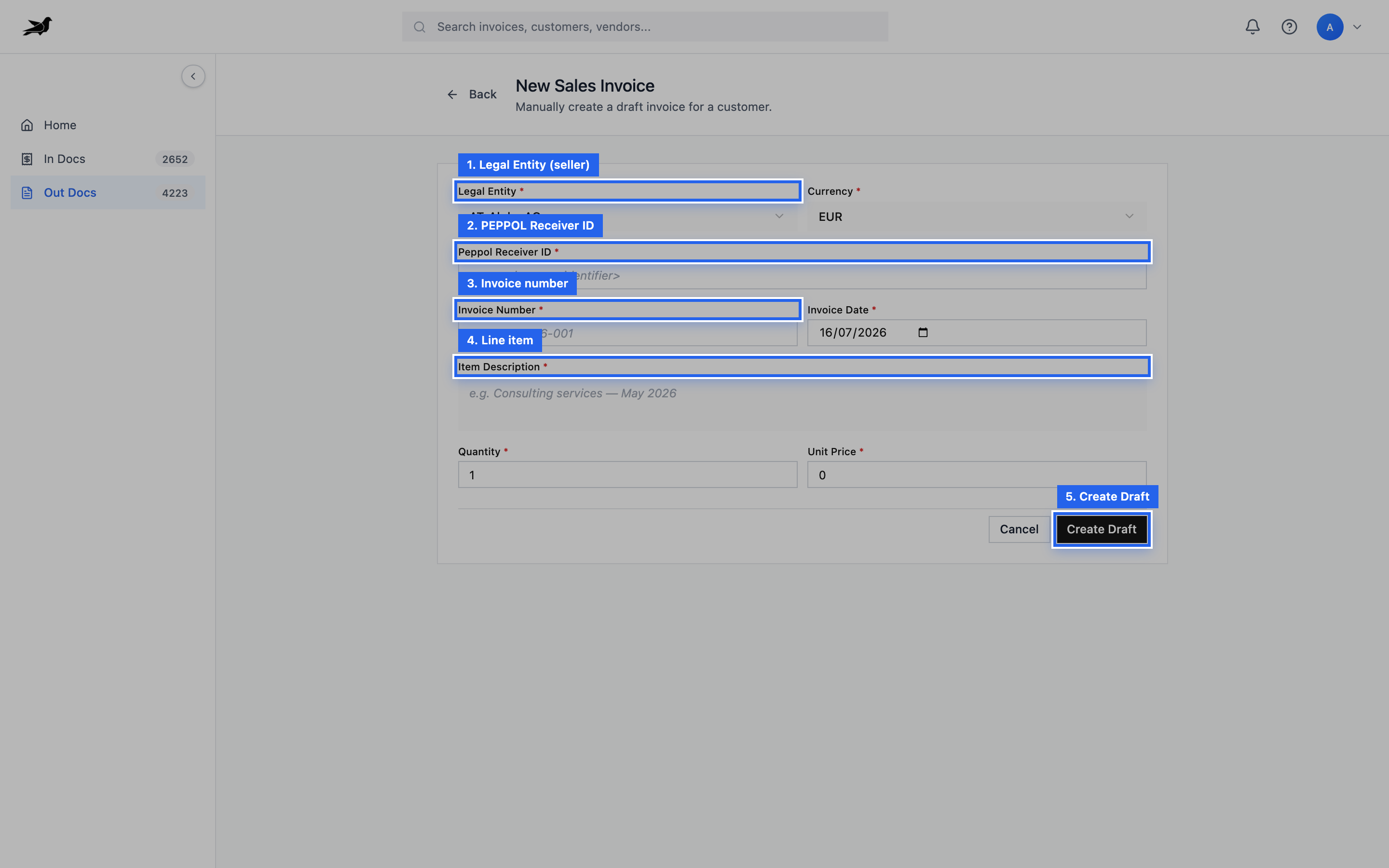
Required fields: Legal Entity, PEPPOL Receiver ID, invoice identity, and at least one line — then Create Draft.
-
Submit to create a Draft sales invoice.
-
Add further lines, charges, tax, or payment terms on the detail screen as needed. Fill Buyer Reference — it is required before the invoice can be saved (see Before you send).
-
Submit and approve until Ready to Send, then Send to Customer.
-
If the legal entity holds several PEPPOL IDs, check Peppol Sender ID — the customer sees the invoice as coming from that ID. You can change it later in the invoice header.
-
As you enter the PEPPOL Receiver ID, Tapr runs an SMP lookup and can fill customer details when the participant is found.
-
Use Duplicate on an existing sales invoice to start a new draft with party and line patterns copied:
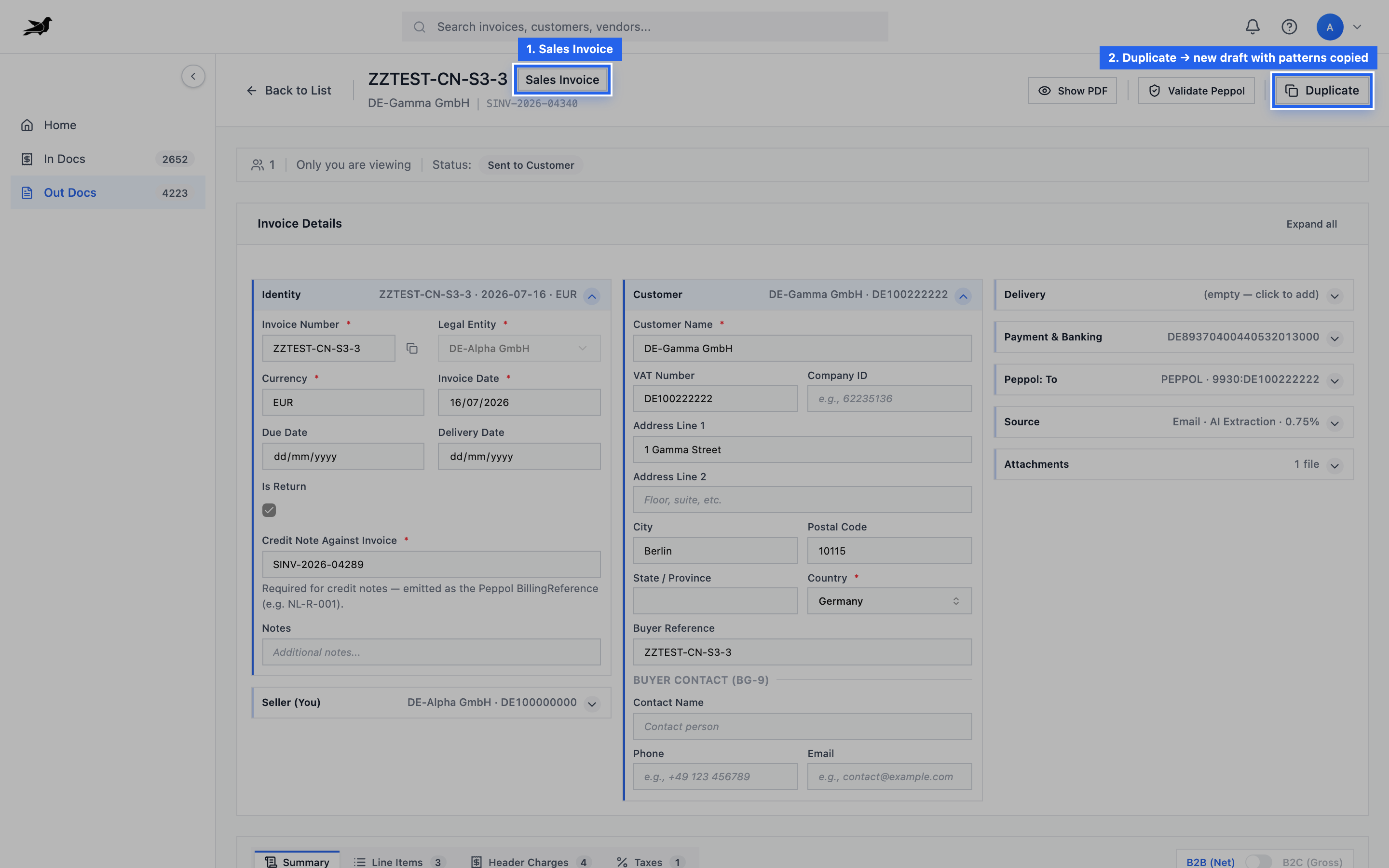
Duplicate copies party and line patterns into a new draft — useful for recurring customers.
-
Prefer Upload, Email, ERP, or API once volume grows beyond a handful of invoices.
Option 2: Upload Invoice
Section titled “Option 2: Upload Invoice”Best for: roughly 5–20 invoices per month as PDF, image, or XML files.
AI required: Yes — bring your own key for plain PDFs and images.
AI setup (BYOK)
Section titled “AI setup (BYOK)”Upload uses XML-first extraction: ZUGFeRD, Factur-X, or UBL embedded in a PDF extract without AI. Ordinary PDFs and images need a configured provider.
- Go to Tapr Settings → AI & Extraction.
- Choose Claude, Gemini, or OpenAI as the primary provider.
- Enter your API key and select a model.
- Optionally configure a fallback provider.
- Save (and test the connection if available).
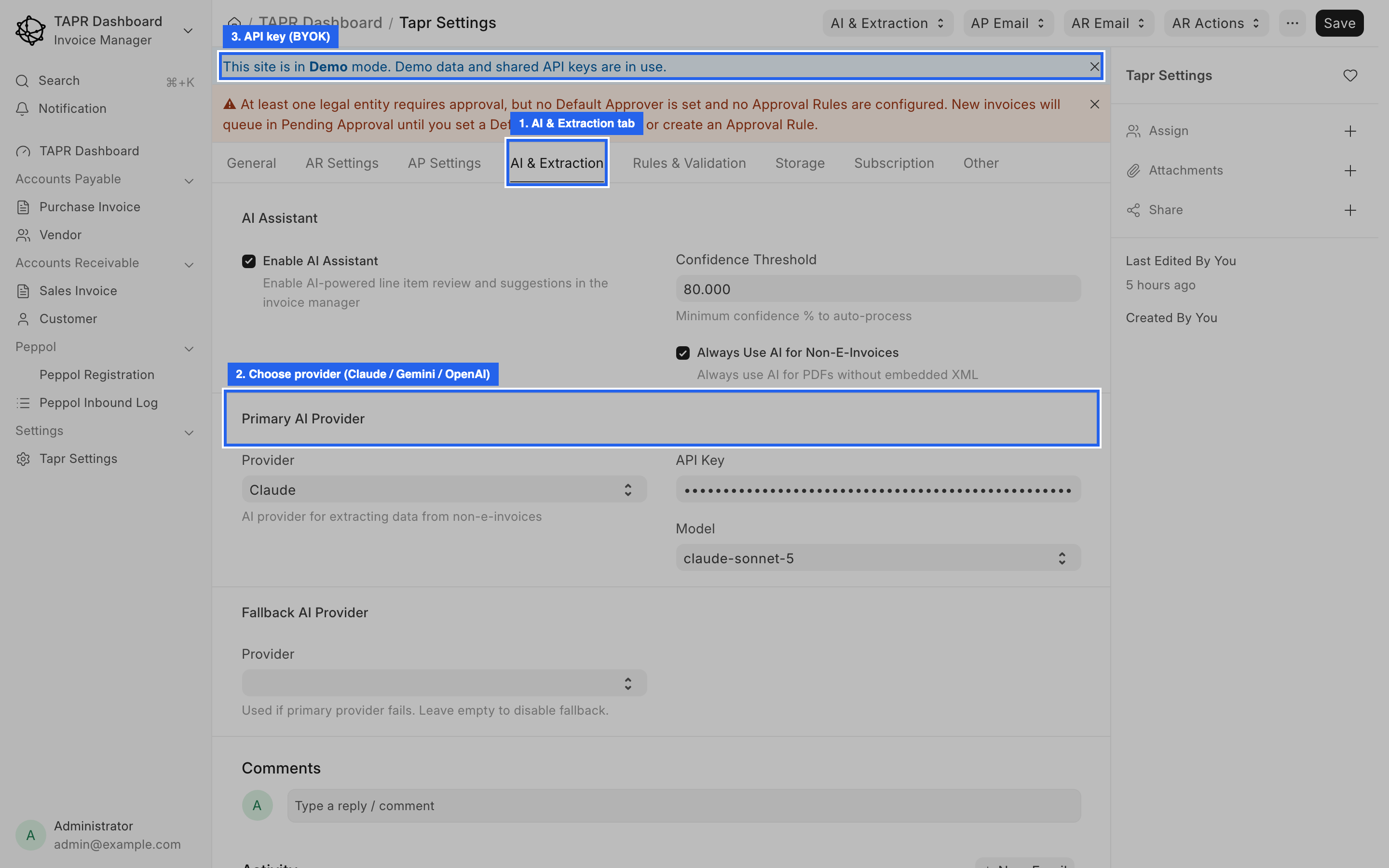
Tapr Settings → AI & Extraction: set Primary AI Provider, API Key, and Model. Required for plain PDF/image upload and AR Email.
See AI Provider Comparison for setup detail.
-
Open Invoice Manager → Out Docs.
-
Click Upload Invoice.
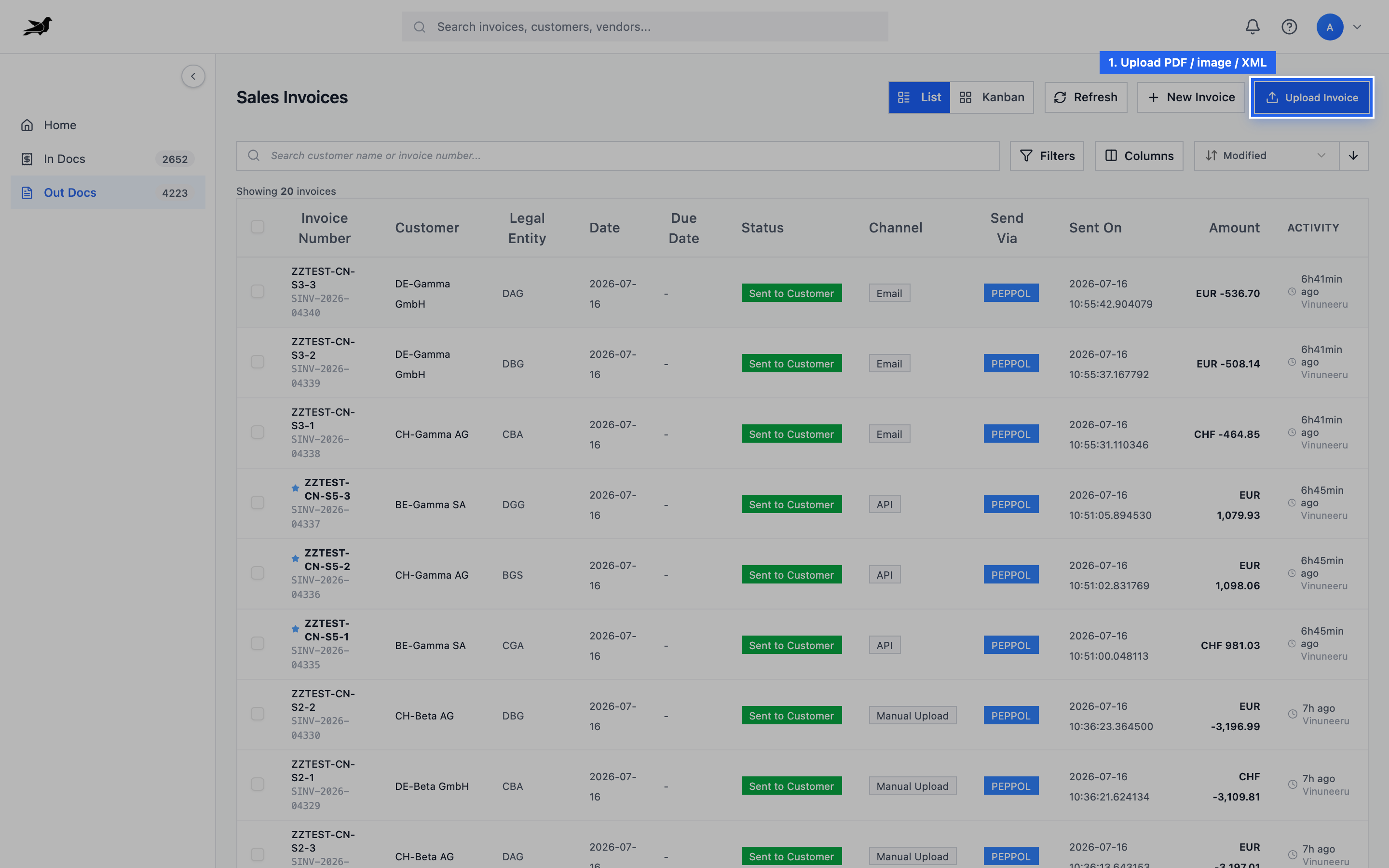
Upload accepts PDF, image, or XML. Plain PDFs need a configured AI key (BYOK).
-
Select one or more files (PDF, images, or
.xml). Multiple files process in parallel. -
Wait for processing to finish (success or error).
-
Open the new sales invoice in Out Docs.
-
Review extracted fields — customer, lines, taxes, totals — and correct as needed.
-
Confirm Legal Entity and PEPPOL Receiver ID. The upload panel shows which legal entity each file was matched to, so you can spot a wrong match before opening the invoice.
-
Complete the workflow through Ready to Send → Send to Customer.
- Prefer machine-readable e-invoice PDFs when possible for higher accuracy and no AI cost.
- Poor scans increase review time; re-upload a cleaner file if extraction is weak.
- Without a valid AI key, plain PDF and image uploads fail extraction.
Option 3: AR Email
Section titled “Option 3: AR Email”Best for: teams that email sales-invoice PDFs into Tapr instead of using the upload button.
AI required: Yes — same BYOK setup as Upload for plain PDFs.
How it works
Section titled “How it works”Tapr provides an AR email address under Tapr Settings → AR Settings. When you send a message with a sales invoice attachment to that address, Tapr:
- Polls the AR mailbox over IMAP
- Downloads attachments
- Extracts data (XML-first, then AI)
- Creates a Sales Invoice in Out Docs
Configure the mailbox
Section titled “Configure the mailbox”- Open Tapr Settings → AR Settings.
- Enable Enable AR Email.
- Note the Username/Email address assigned to your site.
- Set or update the password with Update AR Password.
- Use Test AR Email Connection, then optionally Fetch AR emails now.
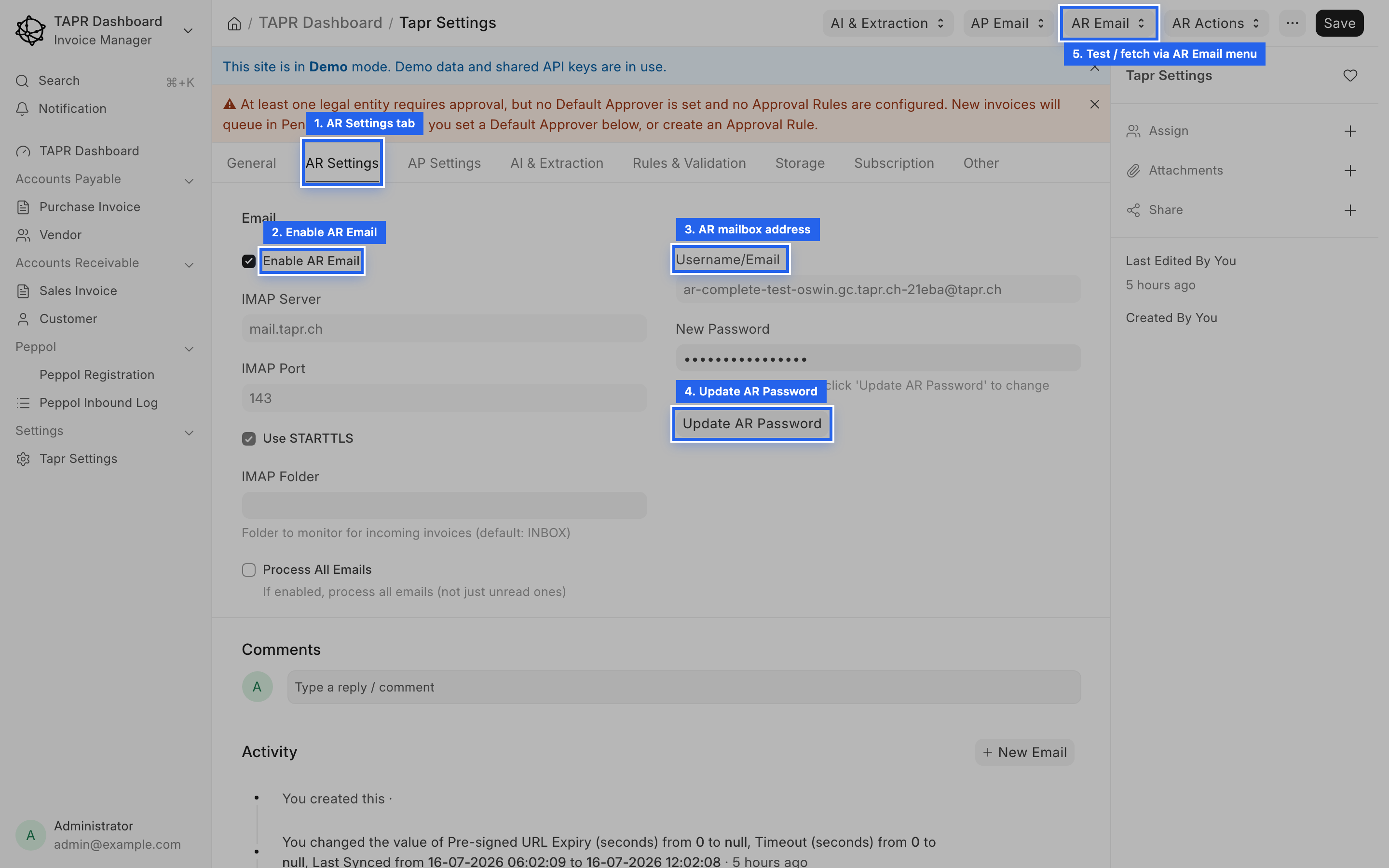
AR Settings: enable the mailbox, set the password, then use the AR Email / AR Actions menu to test or fetch mail.
Full field reference: AR Email Configuration.
Day-to-day use
Section titled “Day-to-day use”- Email the AR address with the sales invoice PDF (or XML) attached.
- Wait for the poll interval, or ask an admin to run Fetch AR emails now.
- Open Out Docs, review the new invoice, set the PEPPOL receiver if needed.
- Approve and Send to Customer.
- Attachments drive processing — emails without a usable invoice file are skipped or fail.
- Use the same AI provider configuration as Upload.
- Successfully processed mail is moved out of the inbox; failures go to an error path for investigation.
Option 4: ERP Integration
Section titled “Option 4: ERP Integration”Best for: bulk volume when sales invoices are already created in an ERP.
AI required: No.
Recommended for high volume.
How it works
Section titled “How it works”With AR ERP fetch enabled for a legal entity, a scheduled job:
- Connects to the ERP (ERPNext, D365, SAP S/4HANA, SAP B1, NetSuite, Xero, QuickBooks, Odoo, Sage, Bexio, Abacus, and others)
- Lists sales invoices marked ready for PEPPOL
- Creates matching Sales Invoices in Tapr
- Syncs status back to the ERP as invoices move through fetched → sent → delivered
- Open Tapr Settings → General → Legal Entity Setup for the selling entity.
- Click Edit (pencil) on that entity’s row.
- Under ERP Integration, enable ERP Integration Enabled and set ERP Type.
- Enable Fetch AR Invoices from … (label is ERP-specific, e.g. Fetch AR Invoices from ERPNext).
- Set company override / URL / credentials as required; use Change ERP Secrets only when updating secrets.
- In the ERP, mark invoices ready for PEPPOL per that connector’s convention.
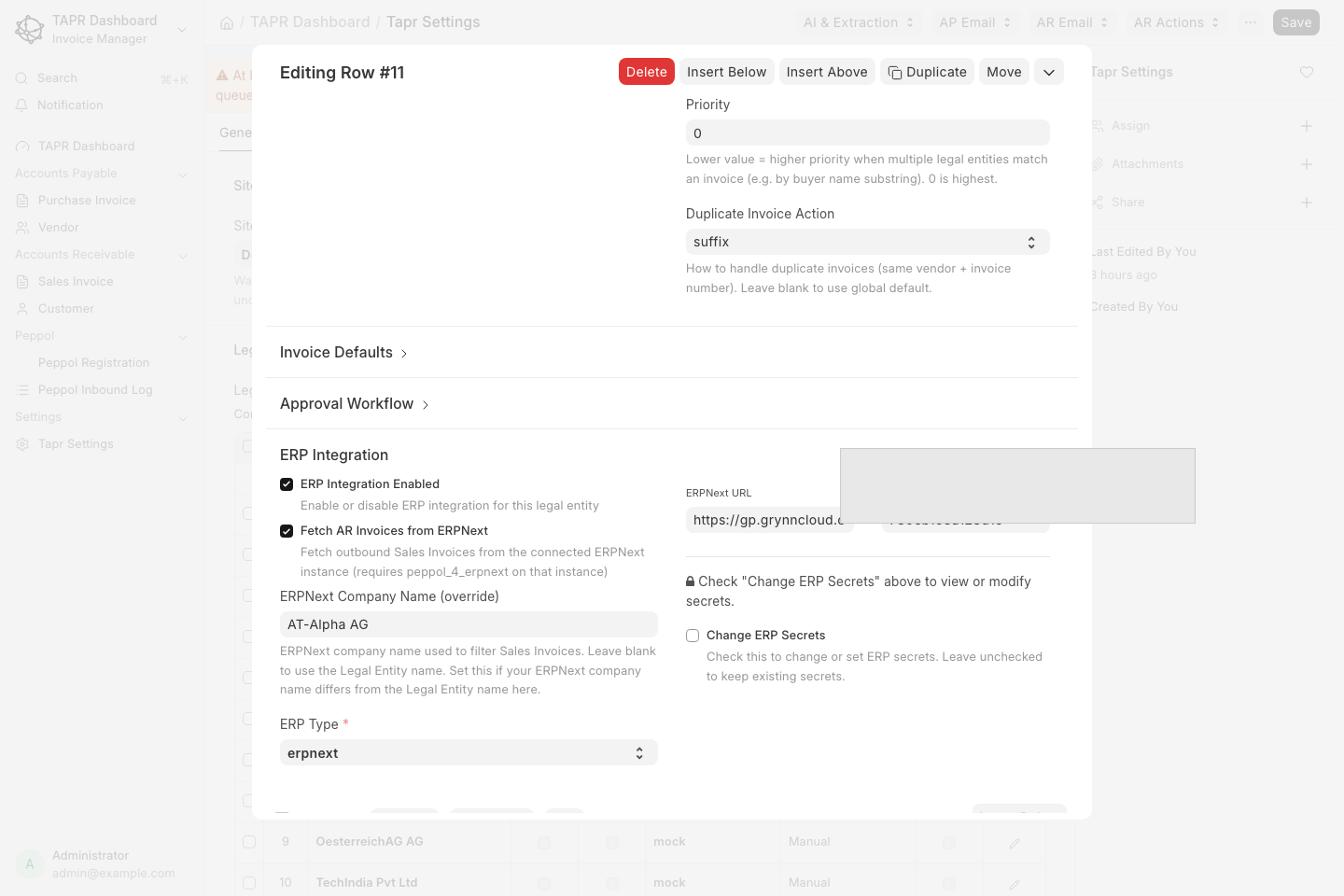
Row Edit → ERP Integration: enable integration, set ERP Type, turn on fetch, and configure connection fields (API keys masked in this shot).
Deep setup: ERP Connections Overview.
Day-to-day use
Section titled “Day-to-day use”- Create and finalize the sales invoice in your ERP.
- Flag it ready for PEPPOL.
- After fetch, open it in Out Docs.
- Review the PEPPOL receiver ID and required fields.
- Complete approval if required, then Send to Customer.
Why this scales
Section titled “Why this scales”- No re-keying or PDF extraction
- ERP remains the system of record
- Status feedback closes the loop for finance
Option 5: API Integration
Section titled “Option 5: API Integration”Best for: bulk automation from a custom system, middleware, or when you already build PEPPOL XML.
AI required: No.
Authentication
Section titled “Authentication”All API calls use token auth:
Authorization: token <api_key>:<api_secret>Generate keys for a user with permission on the relevant legal entity. Plans that include API access (for example Growth or higher) are required for PEPPOL API endpoints.
Create a Sales Invoice via REST
Section titled “Create a Sales Invoice via REST”POST /api/resource/Sales InvoiceContent-Type: application/jsonAuthorization: token <api_key>:<api_secret>{ "doctype": "Sales Invoice", "legal_entity": "Your Company AG", "customer_name": "Buyer GmbH", "peppol_receiver_id": "9930:DE123456789", "currency": "CHF", "send_via": "PEPPOL", "invoice_number": "AR-2026-0042", "buyer_reference": "PO-88231", "invoice_date": "2026-07-15", "net_total": 1000.0, "tax_total": 81.0, "grand_total": 1081.0, "items": [ { "item_description": "Professional services", "quantity": 1, "unit_price": 1000.0, "net_amount": 1000.0, "tax_code": "S", "tax_rate": 8.1 } ]}After insert, open the invoice in Out Docs or advance workflow until Send to Customer. Prefer letting the server derive tax breakdowns from lines and charges where possible.
Invoices created this way appear in Out Docs with Channel = API (see the channel screenshot under Choose your path).
Direct PEPPOL send with pre-built XML
Section titled “Direct PEPPOL send with pre-built XML”If your system already produces UBL or CII XML:
POST /api/method/tapr_next.api.peppol.transmission.send_peppol_invoice ?receiver_id=... &sender_id=... &doc_type_id=... &process_id=... &country_c1=CHAuthorization: token <api_key>:<api_secret>Content-Type: application/xmlBody: raw invoice XML. This uses the same AS4 gateway as the Sales Invoice send path.
See PEPPOL API and REST API Reference for full endpoint detail.
API vs ERP
Section titled “API vs ERP”| Prefer API when… | Prefer ERP when… |
|---|---|
| Source system is custom or middleware | Invoices already live in a supported ERP |
| You need tight control over payload timing | You want status sync back into the ERP |
| You already produce PEPPOL XML | Finance works primarily inside the ERP UI |
Before you send
Section titled “Before you send”Confirm these on every outbound invoice:
- Correct Legal Entity and Peppol Sender ID (seller PEPPOL identity)
- Buyer Reference (BT-10) filled. Invoice Manager requires it when you save edits to a sales invoice. Invoices created by New Invoice, Upload, AR Email, ERP fetch, SFTP or API can arrive without it, so check it before sending. When the selected format is XRechnung it is the Leitweg-ID, and send also requires Payment IBAN and the seller contact name, phone, and email
- Customer name and address complete for the PEPPOL profile
- PEPPOL Receiver ID set (SMP lookup successful when possible)
- Document format is the type you mean to send. Left empty, Tapr sends Peppol BIS Billing 3.0 UBL when the receiver accepts it, even if they also advertise XRechnung or a French profile
- Invoice number, date, currency, lines, and tax codes consistent — on an export outside the EU, a banner on Line Items / Header Charges warns when a row still uses a domestic tax code such as S – Standard rate (it does not block send)
- Coded notes on the Notes tab, and a Business Process Code, only when French CTC is the selected document type. On BIS 3.0, leave Business Process Code empty and keep a single note unless both parties are German
- Totals match lines, charges, and tax
- Credit notes include required preceding invoice references
- Workflow state is Ready to Send
Only send when status is Ready to Send. Use Send to Customer for PEPPOL delivery.
If send fails, open the invoice, review sending errors, fix the highlighted fields, and retry.
Recommendation matrix
Section titled “Recommendation matrix”| Your situation | Recommended option |
|---|---|
| Under 5 invoices per month | New Invoice |
| 5–20 PDF invoices, use the UI | Upload Invoice |
| 5–20 PDF invoices, prefer email | AR Email |
| High volume, invoices in ERP | ERP Integration |
| High volume, custom system or XML | API Integration |